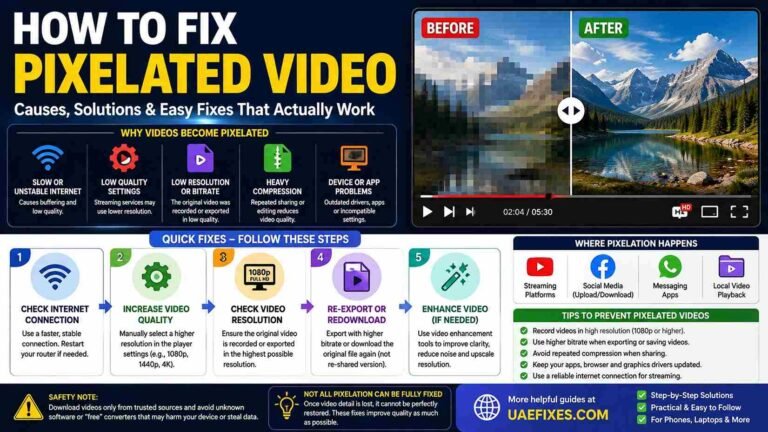
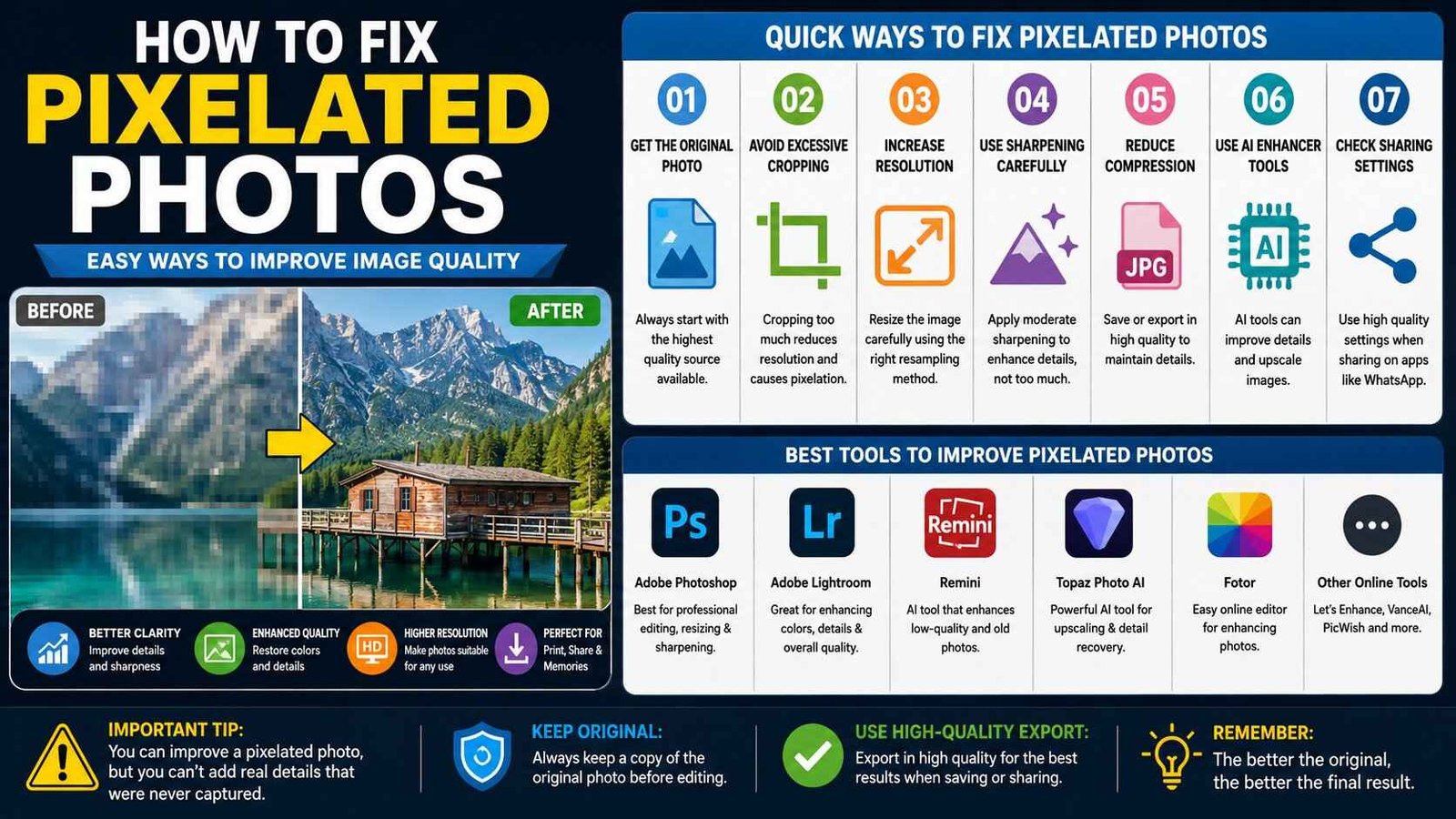
How to Fix Pixelated Photos: Easy Ways to Improve Image Quality
You open an old photo on your phone or computer and suddenly notice the problem: faces look blocky, edges look jagged, and the picture becomes worse when you zoom in. If you’re wondering how to fix pixelated photos, the first thing to know is that not every pixelated image has the same problem.
A photo may look pixelated because it has been heavily compressed, enlarged too much, cropped excessively, downloaded in low quality, or originally captured at a low resolution. The right fix depends on what caused the quality loss.
The good news is that many pixelated photos can be improved. The goal is not simply to make the image larger, but to recover as much useful detail and clarity as possible without creating an artificial or overly sharpened look.
Safety Note: Always keep an original copy of the photo before editing or using an image-enhancement tool. Avoid uploading private, personal, financial, identification, or other sensitive photographs to unknown online services. For reliable information about image resizing and resampling, refer to official guidance from Adobe, and for more practical technology fixes, you can also explore UAEFIXES.COM.
Why Do Photos Become Pixelated?
Pixelation usually becomes noticeable when an image does not contain enough pixels for the size at which you are viewing it.
For example, a small image may look perfectly acceptable on a phone screen but become visibly pixelated when stretched across a computer monitor.
Heavy compression can cause another type of quality loss. When an image is repeatedly saved, uploaded, downloaded, or shared through services that reduce file size, fine details can disappear and block-like artifacts may appear.
Cropping can also create the same problem.
Imagine taking a high-resolution photograph and cutting away most of it to focus on a small object in the distance. The remaining section contains far fewer pixels, so enlarging it can make the image look pixelated.
First: Find the Original Photo
Before trying an AI enhancer or image editor, look for the original file.
This is often the most effective solution.
Check your phone’s gallery, cloud backup, computer, external drive, camera memory card, or the device where the photo was originally taken.
If someone sent you the pixelated version through a messaging app, ask them to send the original photograph instead.
There is a major difference between improving an original image and trying to reconstruct detail from a heavily compressed copy.
If the original still exists, use that version for editing.
How to Fix a Pixelated Photo by Reducing Excessive Cropping
If you have cropped a photo heavily, go back to the original and create a wider crop.
Avoid zooming into a tiny section of the photograph unless you have enough resolution to support it.
For example, if you are trying to isolate a person who appears far away in a group photograph, keeping more of the surrounding image may produce a clearer result than aggressively cropping around the person’s face.
This is one of the simplest ways to improve a pixelated picture without using complicated software.
How to Fix Pixelated Photos by Increasing Resolution
Image-editing software can increase the pixel dimensions of a photograph through a process called resampling.
This creates additional pixels based on the information available in the existing image.
However, increasing the resolution does not magically recover details that were never present.
A very small photograph may become larger and smoother, but it cannot reliably recreate every facial feature, texture, or fine detail from the original scene.
For best results, start with the highest-quality source available.
How to Fix Pixelated Photos in Photoshop
Adobe Photoshop provides several options for resizing and resampling images.
Open the photograph and select:
Image → Image Size
Check the pixel dimensions before making changes.
If you need to enlarge the photograph, enable Resample and choose an appropriate resampling method.
For enlargement, an option designed to preserve details can provide better results than simply stretching the image.
Increase the dimensions gradually rather than immediately making a tiny image several times larger.
After resizing, inspect the photograph at 100% zoom.
If the image looks slightly soft, apply a small amount of sharpening.
Avoid excessive sharpening because it can create bright edges, halos, and an unnatural appearance.
How to Make a Pixelated Image Clearer
Making a pixelated image clearer usually involves several small improvements rather than one magic setting.
Start with the best original file.
Then improve the image size if necessary, reduce visible compression artifacts, adjust contrast carefully, and apply moderate sharpening.
If the photograph contains digital noise, reducing some of the noise before sharpening can produce a cleaner result.
The order matters.
Sharpening a heavily pixelated image first can make the blocky artifacts more obvious.
Use AI Image Enhancement Carefully
AI-powered image enhancement tools can sometimes produce impressive results from low-resolution photographs.
They can estimate missing details and create a sharper-looking image.
This can be useful for portraits, old photographs, scanned images, and pictures that need to be enlarged.
But there is an important limitation.
AI enhancement may generate details that were not actually present in the original photograph.
For example, an unclear face might receive artificially generated skin texture or facial features. The result can look better visually while being less faithful to the original.
For personal memories or important photographs, keep the original file and treat the enhanced version as an edited copy.
How to Fix Pixelated Photos on a Phone
If a photo looks pixelated on your phone, start by checking whether you are viewing a low-quality copy.
Open the original photograph from your gallery or cloud storage rather than a compressed copy from a messaging app.
Check whether the photo has been heavily cropped.
If it has, return to the original and create a less aggressive crop.
You can then use a reputable photo-editing or enhancement application to resize and improve the image.
Do not repeatedly export the same JPEG photograph.
Each additional compression step can potentially reduce image quality.
How to Fix Pixelated Photos on iPhone
On an iPhone, first check whether you are working with the original photograph rather than a reduced copy.
If the image is stored in a cloud photo library, make sure the full-quality version is available before editing.
Avoid repeatedly taking screenshots of the photograph.
A screenshot may have different dimensions from the original and can make an already small image even less useful for editing.
For important photographs, preserve the original file and make a separate edited copy.
How to Fix Pixelated Photos on Android
The same principle applies to Android phones.
Find the original photograph in your gallery or cloud backup.
Check the image dimensions and file size.
If the photograph came from a messaging app, compare it with the original file if possible.
For future photographs, use the camera’s highest practical quality setting when you know you may need to crop, print, or edit the image later.
How to Fix Pixelated Photos From WhatsApp
WhatsApp and other messaging platforms can provide compressed versions of photographs depending on how they are shared.
If the photo looks noticeably worse after being sent, the best solution is often to obtain the original file again rather than trying to repair the compressed version.
For important photographs, send the original file using a method that preserves its original quality.
This is particularly useful when you need the photograph for printing, editing, business documents, or archiving.
How to Fix a Blurry and Pixelated Photo
Blur and pixelation are not exactly the same problem.
Pixelation usually appears as visible blocks or jagged edges caused by insufficient resolution or image processing.
Blur makes details look soft or smeared.
A photo can have both problems at the same time.
If the image is slightly blurry, careful sharpening may help.
If it is severely pixelated, increasing the resolution and using an image-enhancement tool may improve its appearance.
But if the original photograph contains very little detail, there is a limit to what software can recover.
Don’t Simply Increase the Resolution
One common mistake is changing a photograph from a small resolution to a much larger resolution and expecting it to become genuinely high-resolution.
For example, converting a 500-pixel-wide image into a 4,000-pixel-wide image gives you a much larger file, but it does not mean the camera suddenly captured eight times more detail.
Upscaling can make an image more suitable for certain screens or editing workflows, but it cannot recreate authentic information that was lost.
That is why finding the original photograph should always be your first step.
How to Fix Pixelation After Downloading a Photo
If a photograph looked clear before downloading but appears pixelated afterward, compare the downloaded version with the original source.
The website or service may have provided a smaller preview rather than the full-resolution file.
Look for options such as downloading the original image, opening the full-size version, or selecting a higher-quality download.
Avoid enlarging a small thumbnail and saving it as a new photograph.
A thumbnail is designed for quick viewing, not high-quality editing or printing.
How to Improve Photo Quality Before Saving
The best repair is sometimes preventing additional quality loss.
When editing an important photograph, keep the original untouched.
Save your working copy in a format that preserves the quality you need.
Avoid repeatedly opening, editing, and exporting the same compressed JPEG.
If you need multiple versions, create them from the highest-quality master file.
This gives you a much better starting point whenever you need to resize or edit the photograph again.
What Resolution Should a Photo Have?
There is no single resolution that is perfect for every purpose.
A photograph intended for a phone screen does not need the same dimensions as one intended for a large print.
For online use, the required dimensions depend on where the photograph will appear.
For printing, both the image dimensions and intended print size matter.
Instead of choosing an extremely large resolution automatically, consider the final use of the photograph.
A larger file is not automatically a better photograph.
How to Fix Pixelated Old Photos
Old photographs often require a slightly different approach.
If you have a physical photograph, scan it at a suitable resolution rather than taking a low-quality picture of it from across the room.
If you already have a digital scan, keep the original scan before editing.
You can then remove dust and scratches, correct contrast, reduce noise, and carefully sharpen the image.
AI restoration can also help with severely damaged old photographs, but keep in mind that some restored details may be generated rather than recovered from the original.
What Not to Do When Fixing Pixelated Photos
Don’t keep enlarging the same low-quality image repeatedly.
Don’t apply maximum sharpening simply because the photograph looks soft.
Don’t overwrite the original photograph.
Don’t rely on random online image-enhancement websites for private photographs.
And don’t assume that increasing the number of pixels automatically restores lost detail.
A good repair preserves as much genuine information as possible while making the image more usable.
Can You Completely Fix a Pixelated Photo?
Sometimes, but not always.
If the image is only slightly pixelated because of resizing or compression, you may be able to improve it significantly.
If the original image is extremely small, heavily compressed, severely cropped, or badly blurred, there may not be enough genuine information to recover.
Enhancement software can make the image look better, but it cannot guarantee that every missing detail can be restored accurately.
When Should You Use Professional Photo Restoration?
Consider professional restoration if the photograph is valuable, irreplaceable, historically important, or severely damaged.
A professional can work from the highest-quality source available and use advanced restoration techniques while preserving the original separately.
This can be especially worthwhile for old family photographs, important documents, archival material, or photographs intended for large-format printing.
Frequently Asked Questions
Can a pixelated photo be made clear?
Yes, in many cases. The improvement depends on the original resolution, compression, cropping, blur, and amount of information remaining in the image.
How do I fix a pixelated photo for free?
Start by finding the original image, reducing excessive cropping, and using a free image editor to resize and apply moderate sharpening. Avoid repeatedly compressing the photograph.
Can I unpixelate a photo?
You can often reduce the appearance of pixelation, but completely recovering lost information is not always possible.
Does increasing resolution fix pixelation?
Increasing resolution can make an image larger and sometimes smoother, but it does not recreate genuine detail that was never captured or has already been lost.
How do I fix pixelated photos on my phone?
Find the original photo, avoid excessive cropping, and use a reputable editing or enhancement application. Keep the original file before making changes.
Why do my photos look pixelated after WhatsApp?
A compressed or reduced-quality version may have been sent instead of the original. Compare it with the original file and resend the highest-quality version when possible.
Can AI fix pixelated photos?
AI enhancement can improve the visual appearance of some low-resolution photographs, but it may generate details that were not actually present in the original.
How can I make an old pixelated photo clearer?
Start with the highest-quality scan or original file. Then consider noise reduction, restoration, resizing, and careful sharpening.
Does sharpening remove pixelation?
Not usually. Sharpening can make edges appear clearer, but excessive sharpening can make pixelation and compression artifacts more noticeable.
What is the best way to fix a very low-resolution photo?
Find a higher-resolution original if one exists. If it does not, careful upscaling and enhancement may improve the image, but the result will always be limited by the information contained in the source.
Final Fix
When learning how to fix pixelated photos, the most important step is understanding why the photo became pixelated in the first place.
If the original file is available, use it.
If excessive cropping caused the problem, return to the uncropped image.
If compression caused the quality loss, find a higher-quality copy.
If the photograph is genuinely low resolution, careful upscaling and enhancement can make it more usable.
And if the image is important, always preserve the original before experimenting.
The goal is not simply to add more pixels. The goal is to get the clearest and most natural result from the information the photograph actually contains.