How to Fix Pixelated Video: Causes and Practical Solutions
A video can look perfectly clear one moment and suddenly turn into a blocky, blurry mess the next. Sometimes the problem disappears after a few seconds, while other times the entire video looks pixelated from beginning to end.
Before blaming your phone, laptop, camera, or internet connection, there is one important question to answer: is the video itself low quality, or is your device receiving a low-quality stream?
That difference matters. If a streaming service is temporarily lowering the resolution because your connection cannot keep up, the problem may be easy to fix. But if the original video was recorded at very low resolution or heavily compressed, no setting can magically recreate detail that was never captured.
⚠️ Safety Note: Avoid downloading unknown “video repair” software, cracked editors, or random enhancement tools that ask for unnecessary permissions or personal information. When troubleshooting streaming quality, start with the official app or website and your device’s built-in settings. For YouTube playback problems, Google’s official troubleshooting guidance recommends checking the connection, video quality, browser/app, and device before moving to more advanced solutions.
Why Is My Video Pixelated?
Pixelation happens when the image does not contain enough usable visual detail for the size at which it is being displayed.
Imagine taking a small photograph and stretching it across a large screen. The individual blocks that make up the image become easier to see. Video works in a similar way.
However, pixelation can have several different causes.
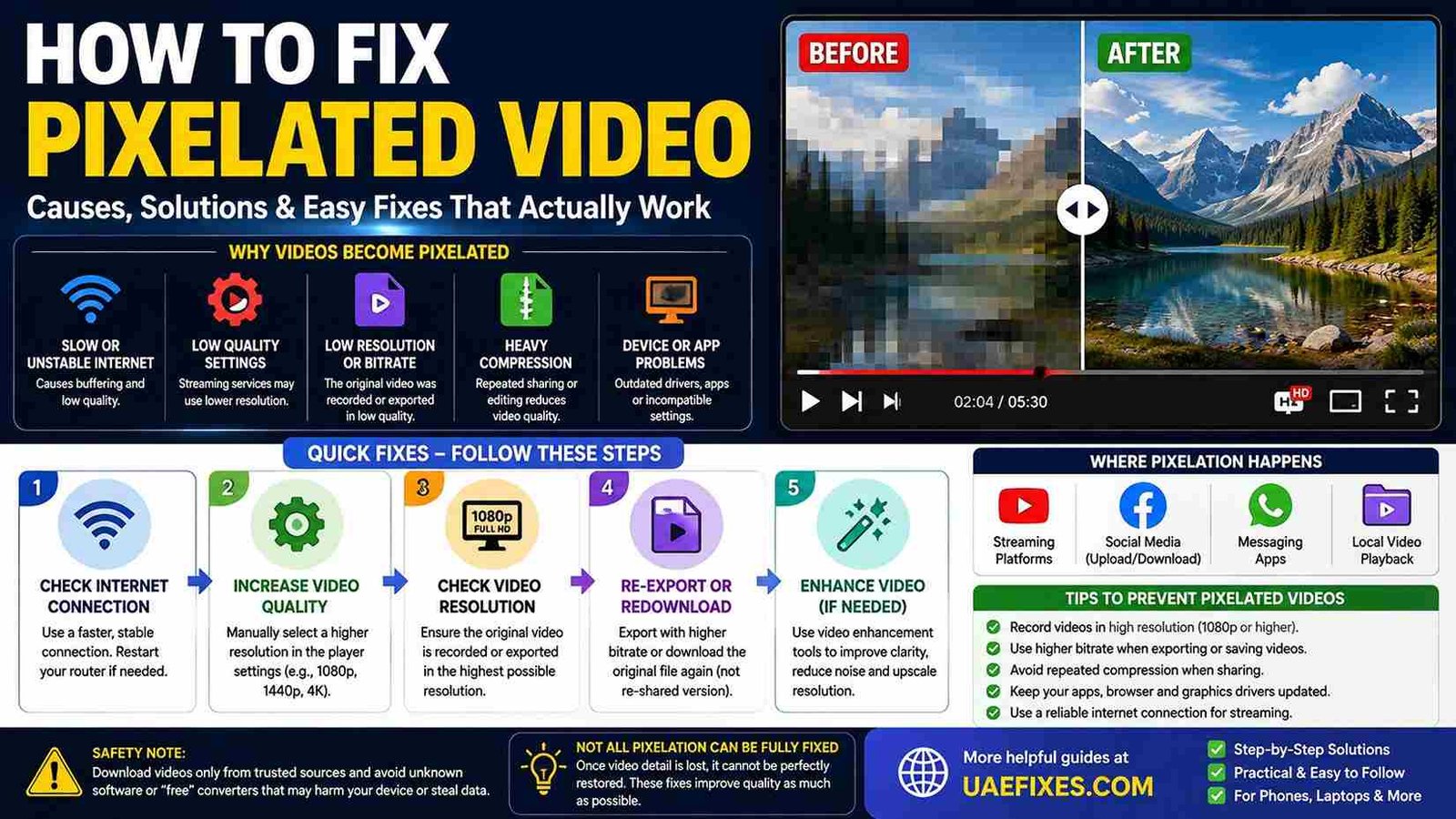
A streaming service may reduce quality because of an unstable internet connection. A video may have been recorded in low resolution. An editing application may have exported it with an unnecessarily low bitrate. Repeated compression through messaging or social-media platforms can also remove detail.
The first job is therefore to identify where the quality is being lost.
Check Whether the Original Video Is Actually Pixelated
This is the fastest way to avoid fixing the wrong thing.
Open the same video on another device or through another player.
If the video looks sharp on another device, your original device, app, browser, display, or connection may be responsible.
If it looks pixelated everywhere, the video file or the source itself is probably low quality.
This distinction becomes especially useful when someone sends you a video through a messaging application. The copy you received may have been compressed even though the original recording was much clearer.
How to Fix Pixelated Video While Streaming
If YouTube or another streaming service suddenly looks pixelated, don’t immediately assume the video has been uploaded badly.
Streaming platforms can automatically change playback quality depending on viewing conditions. YouTube specifically considers factors such as internet speed, screen size, the quality of the original upload, and browser compatibility when determining available playback quality.
Start by opening the video’s quality settings.
If the player has automatically selected a low resolution, manually choose a higher option such as 720p, 1080p, or another quality available for that video.
If the higher quality immediately becomes pixelated again or starts buffering heavily, your connection may not be able to maintain that resolution consistently.
Check Your Internet Connection
A weak or unstable internet connection can make streaming video look much worse than the original.
Run a speed test and compare the result with the quality you are trying to watch.
YouTube currently lists approximate sustained speeds of around 5 Mbps for 1080p, 2.5 Mbps for 720p, and 20 Mbps for 4K playback, although actual performance can vary depending on the network and other conditions.
The important point is that download speed alone does not tell the whole story.
A connection that repeatedly fluctuates can cause a video player to reduce quality even when a speed test briefly shows a high number.
For home Wi-Fi problems, our How to Fix Wi-Fi guide can help you troubleshoot weak signals and unstable connections.
Restart the Router if Streaming Keeps Dropping Quality
If multiple devices in your home suddenly show pixelated streaming, the router or internet connection deserves attention.
Restart the router and allow it to reconnect completely.
Then test the video again.
If the problem disappears after the restart but returns regularly, don’t treat restarting the router as the permanent solution. It may be a sign of a broader network problem.
You can also test the same video using mobile data instead of Wi-Fi, where practical.
If the video becomes clear on mobile data but remains pixelated on your home Wi-Fi, the home network becomes a stronger suspect.
Try a Different Device
This simple test can save a surprising amount of time.
Watch the same video on your phone, laptop, tablet, or television.
If only one device shows pixelation, investigate that device.
If every device connected to the same network has the problem, investigate the network or streaming service.
If the video looks poor everywhere, investigate the source quality.
This creates a simple troubleshooting path instead of changing random settings.
Check the Video Resolution
Resolution tells you how much image detail a video can contain.
Common resolutions include 480p, 720p, 1080p, and 4K.
A 480p video stretched across a large modern television will naturally look less detailed than a properly produced 1080p or 4K video.
YouTube describes HD as generally including 720p and 1080p, while 4K UHD provides substantially more resolution.
If the original video is only available in a low resolution, selecting a higher playback setting cannot create genuine missing detail.
How to Fix a Pixelated Video File
If you downloaded or recorded the video and the actual file looks pixelated, first check its resolution.
Right-click the file on a computer and inspect its properties, or use the information panel in your video player or editing software.
Look at the resolution and file size.
A very small file with a low resolution is a clue that the video may have been heavily compressed.
If you still have access to the original recording, use that version instead of an edited or repeatedly shared copy.
This is often the best possible fix.
Re-Download the Original Video
Sometimes the easiest solution is to obtain a better copy.
If a video was downloaded from a legitimate source and you have a choice of quality settings, choose the highest suitable quality.
Avoid downloading the same file repeatedly from websites that aggressively compress or convert videos.
If someone sent you a compressed copy through a messaging service, ask for the original file through a method that preserves its original quality.
There is little benefit in trying to enhance a heavily compressed copy if a clean original is available.
Why WhatsApp and Social Media Videos Can Look Pixelated
Messaging and social-media platforms may compress uploaded or shared media to reduce file size and make transfers faster.
That means a video can look excellent in your phone’s gallery but become noticeably softer after being sent or uploaded.
If you need to preserve video quality, use the platform’s original-quality or document/file-sharing option when available, or transfer the original file through a storage or sharing service that does not unnecessarily recompress it.
The exact options vary by platform and can change over time.
The important principle is simple: don’t repeatedly compress the same video if quality matters.
How to Fix Pixelated Video on a Phone
Start by determining whether the video is a streaming video or a file stored on the phone.
For streaming video, check the connection and manually increase playback quality if the service provides that option.
For a locally stored video, open the same file in another compatible video player.
If it remains pixelated, check the original file’s resolution and quality.
If the video was recorded with the phone’s camera, check the camera settings used when recording. A recording captured at a low resolution cannot be transformed into genuine 4K simply by changing its playback settings.
How to Fix Pixelated Video on a Laptop
On a laptop, test the video in another browser or media player.
If you are watching online, update the browser and close unnecessary tabs or applications that may be consuming system resources.
YouTube recommends keeping the browser and device software updated when troubleshooting playback problems.
If the same local video file looks pixelated in multiple players, the file itself is more likely to be the problem.
If online videos look pixelated but downloaded videos are sharp, investigate the browser, streaming quality, or internet connection.
Clear Your Browser Cache When Online Video Behaves Strangely
A browser problem can sometimes affect video playback.
If a streaming website behaves unusually, try closing and reopening the browser.
You can also test the video in a private or incognito window.
If it works correctly there, browser extensions, cached data, or another browser setting may be involved.
YouTube specifically recommends checking browser updates, cache and cookies, and extensions when troubleshooting playback problems.
Don’t clear everything immediately if you don’t need to. Start with a simple private-window test because it can help identify whether the browser environment is involved.
Update Your Video App
If pixelation occurs inside a particular app, check whether an update is available.
An outdated application may have compatibility or playback issues, particularly after the operating system or streaming service changes.
On Android, YouTube’s official troubleshooting guidance recommends using the latest version of the app, restarting the device, and trying another internet connection when investigating video problems.
The same diagnostic principle applies to other streaming applications.
Can AI Fix a Pixelated Video?
AI video enhancement can sometimes make a low-quality video appear cleaner by sharpening edges, reducing noise, increasing apparent resolution, or reconstructing certain visual details.
But there is an important limitation.
AI cannot reliably recover every detail that was never captured.
If a person’s face contains only a handful of blurry pixels, an enhancement system may produce a more visually convincing result, but it is not necessarily recovering the person’s actual missing facial detail.
Modern enhancement technology can be useful for improving appearance, but it should not be confused with restoring a perfect original.
Some platforms are also beginning to offer their own video enhancement technologies. YouTube, for example, describes a Super Resolution feature that can use Google’s technology to make some lower-resolution uploads appear more like HD.
Don’t Over-Sharpen a Pixelated Video
Sharpening can make a soft video look more defined, but too much sharpening can make pixelation more obvious.
You may see harsh edges, halos around objects, exaggerated noise, or block patterns.
If you’re editing the video yourself, make small changes and compare the result with the original.
The goal is not to make every edge extremely sharp.
The goal is to make the video look naturally clearer.
What If the Video Was Recently Uploaded?
If you uploaded a high-resolution video to a platform and it immediately looks pixelated, don’t assume the platform permanently reduced its quality.
Some services process different resolutions separately.
YouTube explains that uploaded videos can initially be available in low quality while higher-resolution versions continue processing in the background. Higher-resolution videos such as 1080p and 4K can take longer to process.
If the high-quality option has not appeared yet, give the platform time to finish processing before deleting and re-uploading the video.
How to Prevent Videos From Becoming Pixelated
The best fix is often preventing unnecessary quality loss in the first place.
Record at an appropriate resolution for how the video will be used.
When editing, avoid exporting at a much lower resolution than the original.
Choose a sensible bitrate rather than aggressively reducing file size.
Keep the original recording whenever possible.
And avoid repeatedly downloading, editing, exporting, and re-uploading the same compressed copy.
Every additional conversion can potentially introduce another layer of quality loss.
Pixelated Video Problems in the UAE
For people streaming video at home in the UAE, a pixelated stream can sometimes be confused with a poor-quality video source.
Before changing the video itself, test the connection.
Check whether other devices are using significant bandwidth, especially when several people are streaming, downloading large files, gaming, or backing up data.
Also test the same service near the router and farther away.
If the video becomes clear near the router but pixelated in another room, your Wi-Fi coverage may be contributing to the problem.
If you are using mobile data, compare the result with Wi-Fi where practical.
This simple comparison can tell you whether you’re dealing with the video source or the network carrying it.
When a Pixelated Video Cannot Be Fixed
This is the part many online guides leave out.
If the original video was recorded at very low resolution, heavily compressed, damaged, or repeatedly converted, there may simply not be enough information left to restore.
You can upscale it.
You can sharpen it.
You can reduce noise.
You can try AI enhancement.
But none of these guarantees recovery of the original detail.
The best solution may simply be finding the original recording or a higher-quality copy.
That is why keeping original video files is so valuable.
A Simple Way to Diagnose Pixelation
Think of the problem as three possibilities.
The video is pixelated everywhere: check the original file or source quality.
Only streaming video is pixelated: check internet speed, Wi-Fi stability, playback quality, browser, and app.
Only one device shows pixelation: check that device, application, browser, display settings, and playback software.
Once you know which category you are dealing with, the solution becomes much more straightforward.
Frequently Asked Questions
How do I fix pixelated video?
First determine whether the problem affects streaming or the original video file. For streaming, check your internet connection and increase the playback quality. For a local file, check its resolution and use the original or a higher-quality copy if available.
Why is my video pixelated?
Common causes include low streaming quality, unstable internet, low original resolution, heavy compression, poor export settings, outdated software, or a playback problem on the device.
How do I fix a pixelated video online?
Check your internet connection, restart the router if necessary, manually select a higher video quality, update the browser or app, and test the video on another device. If the original upload is low quality, changing your connection will not improve it.
Can I make a pixelated video clear?
You can often improve its appearance with upscaling, sharpening, noise reduction, or AI enhancement. However, missing original detail cannot always be fully recovered.
How do I fix pixelated video on my phone?
For streaming, check your Wi-Fi or mobile connection and increase the playback quality. For a downloaded or recorded video, check the original file’s resolution and try another player. If possible, use the original recording rather than a compressed copy.
Why do videos become pixelated on Wi-Fi?
The connection may be too slow or unstable to maintain the selected streaming quality. Multiple devices using the same network can also reduce the bandwidth available to your device.
Why does YouTube look pixelated?
YouTube automatically adjusts video quality according to viewing conditions. Internet speed, screen size, the original video’s quality, and browser compatibility can affect available playback quality.
Why does my uploaded video look pixelated?
The platform may still be processing higher-quality versions of the upload. YouTube notes that 1080p and 4K processing can take longer than lower-quality versions.
Can AI repair a low-quality video?
AI enhancement can improve apparent clarity and resolution in some cases, but it cannot guarantee recovery of information that was never present in the original recording.
Should I increase video sharpness to remove pixelation?
Not necessarily. Excessive sharpening can make compression blocks and noise more visible. Moderate enhancement usually produces a more natural result.
Final Fix
When you ask how to fix pixelated video, don’t start by downloading an expensive video-enhancement program.
First find out where the pixelation comes from.
If it happens only while streaming, check the connection and playback quality.
If the original file is pixelated everywhere, check its resolution and compression.
If another device plays the same video clearly, investigate the original device or app.
And if the video has genuinely lost its detail through low-resolution recording or heavy compression, be realistic about what enhancement tools can achieve.
Sometimes the best video repair is not repairing the damaged copy at all—it is finding the original, higher-quality version.
For related connectivity problems, see our How to Fix Wi-Fi guide on UAEFIXES.COM.