How to Fix Windows Update Errors: Common Problems and Practical Solutions
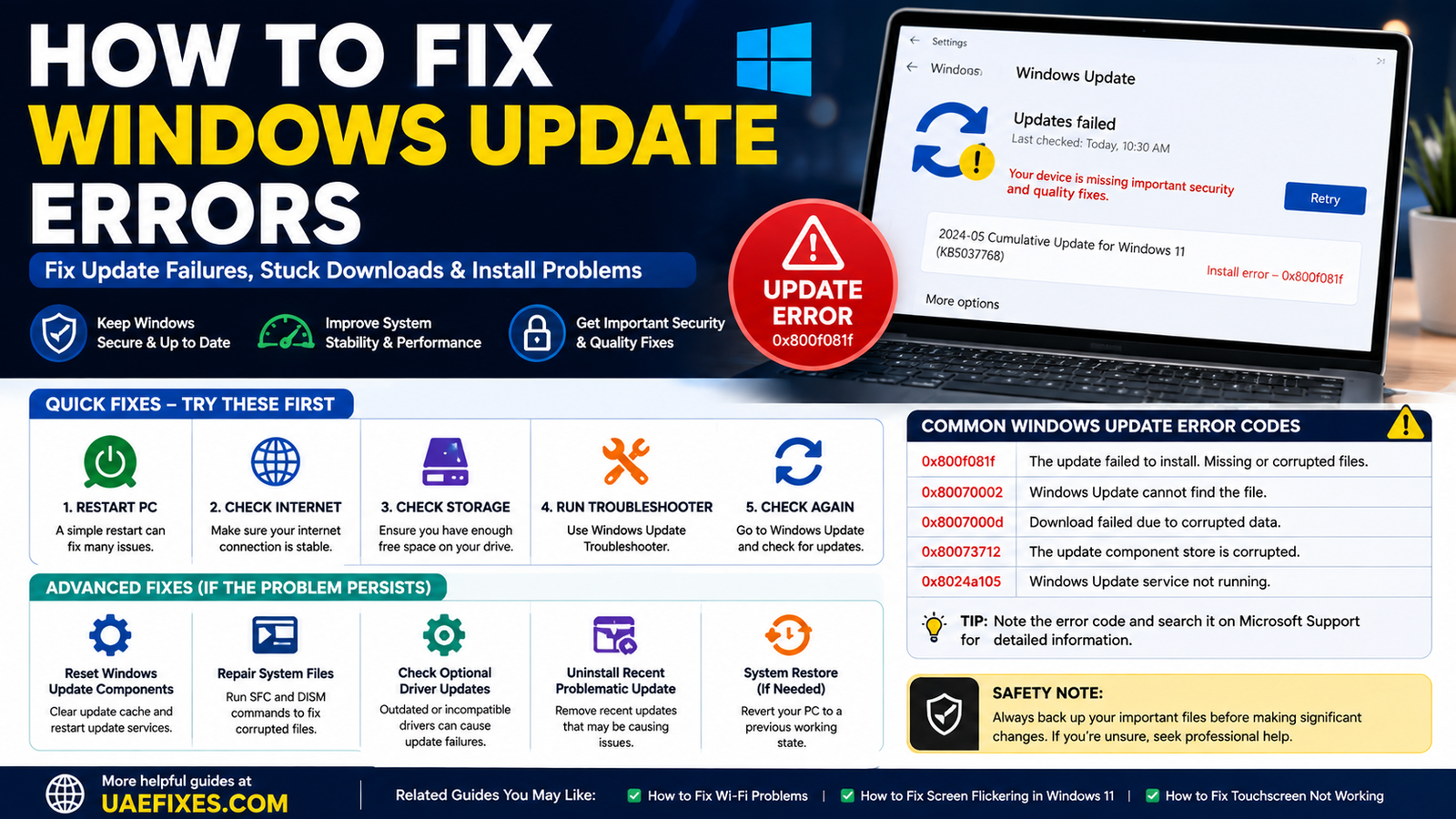
Windows Update is supposed to work quietly in the background, but when an update gets stuck, refuses to install, or keeps showing the same error, it can quickly become frustrating. You may see an error code, an update stuck at a certain percentage, a repeated restart request, or the message “Your device is missing important security and quality fixes.”
The important thing is not to treat every Windows Update error the same way. A failed download, insufficient storage, a damaged update cache, a driver conflict, and a problem with Windows system files can produce very different symptoms.
Before using complicated commands or resetting Windows, start with the simplest checks and work toward the more advanced fixes only when the problem requires them.
⚠️ Safety Note: Windows Update troubleshooting can involve restarting the computer, changing system settings, or repairing Windows components. Save your work before starting and back up important files before using recovery or reset options. For official Windows Update troubleshooting, see Microsoft’s Windows Update Troubleshooter.
Why Is Windows Update Not Working?
Windows Update errors can happen for several reasons.
The computer may not have enough free storage, the update files may be damaged, Windows services may not be working correctly, a driver may conflict with the update, or a previous update may not have completed properly.
Internet problems can also interrupt downloads, while security software, third-party utilities, or unusual system configurations can sometimes interfere with the update process.
The first useful clue is the exact behaviour.
If the update will not download, look at the connection, storage, and Windows Update service.
If it downloads but will not install, corrupted files, drivers, system components, or a previous failed update may be involved.
If Windows says “Your device is missing important security and quality fixes,” the system may not have successfully installed required updates even though Windows Update is reporting that something is missing.
Restart Windows Before Trying Advanced Fixes
It sounds obvious, but restart the computer before changing anything complicated.
A pending update may require a restart to complete installation.
Temporary Windows processes can also become stuck, and restarting gives them a clean start.
After restarting, open Settings → Windows Update and select Check for updates.
If the update installs normally afterward, there is no reason to perform more advanced repairs.
Check Your Internet Connection
Windows Update needs a reliable connection to download update files.
If your Wi-Fi keeps disconnecting or the internet is unstable, an update may fail before the installation even begins.
Try opening several websites to confirm that your connection is working normally.
If possible, compare the connection with another device.
For home-network problems, you can also use our How to Fix Wi-Fi guide on UAEFIXES.COM to troubleshoot weak signals, connection problems, and other Wi-Fi issues.
If the internet works normally but Windows Update still fails, continue with the Windows-specific checks.
Make Sure You Have Enough Storage
Windows updates need free space to download, unpack, install, and sometimes create temporary files.
A computer that is almost out of storage can behave unpredictably during an update.
Open Settings → System → Storage and check how much space remains on the Windows drive.
Remove unnecessary temporary files or move large personal files if necessary.
Windows also provides Storage Sense to help remove temporary files and free space. Microsoft recommends checking available storage when troubleshooting Windows performance and update-related problems.
Don’t randomly delete files from Windows system folders just to create space. Use Windows’ built-in storage tools or remove files you know you no longer need.
Run the Windows Update Troubleshooter
Windows 11 includes Microsoft’s newer troubleshooting system through the Get Help app.
Microsoft recommends starting with the automated Windows Update troubleshooter when Windows 11 has problems downloading or installing updates. It can diagnose common configuration problems and attempt automatic repairs.
If the troubleshooter identifies a problem, follow its recommended action and restart the computer if requested.
This is worth trying before manually changing Windows services or deleting update files.
Check Windows Update Again After the Troubleshooter
After the troubleshooter finishes, don’t assume the problem is fixed until you test Windows Update again.
Go to:
Settings → Windows Update
Select Check for updates.
If the update downloads and installs normally, the problem may have been a temporary Windows Update configuration issue.
If the same error returns, take note of the error code or message rather than repeatedly clicking Retry.
The exact error can provide a much better clue about what needs fixing.
What Does “Your Device Is Missing Important Security and Quality Fixes” Mean?
This message usually indicates that Windows has not successfully installed updates that Microsoft considers important for the system.
It does not necessarily mean the computer has been hacked or that the hardware is damaged.
The message can appear when Windows Update is unable to complete an update, when an update repeatedly fails, or when the update system is not functioning correctly.
Start by checking Windows Update for available updates and restarting the computer.
If the message remains, run the Windows Update troubleshooter and investigate the specific update or error code shown in Windows Update.
This is more useful than treating the message itself as the root cause.
Check Windows Update History
Windows keeps a record of updates and their installation status.
Open:
Settings → Windows Update → Update history
Look for updates marked as failed.
If the same update has failed repeatedly, note its KB number.
A KB number can help you identify the particular update instead of troubleshooting Windows Update as a whole.
For example, if one cumulative update repeatedly fails while other updates install successfully, the problem may be specific to that update, a system component, a driver, or the configuration of the computer.
Microsoft maintains Windows release and update information that can be used to check known issues affecting particular Windows versions and updates.
Check for Optional Driver Updates
Sometimes an update problem is connected to a device driver.
Windows 11 provides optional driver updates under:
Settings → Windows Update → Advanced options → Optional updates
If relevant driver updates are available, review them carefully.
Don’t install every optional driver simply because it is available.
If you recently installed a new piece of hardware or started experiencing problems after a driver change, the driver may be particularly relevant.
Microsoft also recommends using Windows Update for recommended drivers before looking for manufacturer-specific drivers.
Disconnect Recently Added Hardware
Think about what changed before Windows Update stopped working.
Did you connect a new USB device?
Install a new storage drive?
Add a printer?
Change a graphics card?
Install another hardware component?
If the update problem appeared immediately afterward, temporarily disconnecting non-essential new hardware can help determine whether a driver or hardware change is involved.
You don’t need to unplug everything from the computer. Focus on hardware added shortly before the problem started.
Restart the Computer Again After a Failed Update
Windows can sometimes leave an update in a pending state after a failed installation.
If Windows reports that a restart is required, restart it before attempting other repairs.
After restarting, check Update history.
If the same update continues to fail, record the error code and KB number.
That gives you something specific to investigate rather than repeatedly restarting the computer without learning anything new.
Repair Windows System Files
If Windows Update continues failing, damaged system files may be involved.
Windows includes built-in tools for checking and repairing system components.
One commonly used approach involves System File Checker and the Deployment Image Servicing and Management tool, but these commands should be used carefully and in the correct order.
Don’t copy commands from random websites simply because they claim to fix every Windows Update error.
If you are comfortable using Windows Terminal or Command Prompt as an administrator, use Microsoft’s official instructions for the specific repair procedure you need.
The goal is to repair Windows components—not to run a long list of unrelated commands.
Be Careful With Windows Update Reset Scripts
You may find websites offering a one-click Windows Update reset script.
Some scripts can be useful, but they can also make significant changes to Windows services, folders, permissions, or system configuration.
For a general UAEFIXES.COM reader, I would not recommend running an unknown script just because Windows Update is failing.
If you need to reset Windows Update components, understand what the commands are changing and use Microsoft’s official guidance wherever possible.
A repair that you don’t understand can create a second problem while attempting to solve the first.
Check Whether a Third-Party Program Is Interfering
Some security software, system-optimization utilities, VPN applications, or other background programs can interfere with Windows operations.
If Windows Update worked normally before a particular program was installed or updated, that timing is worth investigating.
Don’t immediately uninstall security software without considering the consequences.
Instead, check the software manufacturer’s support documentation and Windows compatibility information.
If the update problem started after installing a system utility, restoring or uninstalling that specific program may be more useful than changing unrelated Windows settings.
What If Windows Update Is Stuck at 0%?
An update showing 0% does not always mean it is completely frozen.
Windows may be downloading, preparing, verifying, or waiting for another system process.
Give the computer some time, particularly if the update is large or the system has slower storage.
If the percentage remains unchanged for an unusually long period and Windows Update repeatedly fails, restart the computer and check Update history.
Then look for an error code or failed KB number.
The objective is to determine whether the update is actually stuck or simply taking longer than expected.
What If Windows Update Is Stuck at 100%?
A Windows update reaching 100% does not necessarily mean the entire process is finished.
Windows may still be completing installation tasks or waiting for a restart.
If Windows specifically tells you to restart, allow it to restart normally.
Do not repeatedly force the computer to shut down while Windows is installing an update unless the system has genuinely become unresponsive and you have no other option.
If the computer repeatedly returns to the same update or installation screen, the problem requires deeper troubleshooting.
What If an Update Keeps Failing With the Same Error?
Repeated failure is more useful than a random failure because it gives you a pattern.
Open Update history and identify the failed update.
Write down the KB number and error code.
Then check Microsoft’s official Windows support and update information for that particular update and Windows version.
Microsoft publishes update histories that include known issues, workarounds, and fixes for specific releases.
This targeted approach is usually better than resetting the entire Windows Update system immediately.
When Should You Uninstall an Update?
If Windows started behaving badly immediately after a particular update, uninstalling that update may be appropriate in some situations.
Windows provides recovery options for systems that become unstable after an update, including the ability to uninstall a recent update. Microsoft recommends choosing recovery options based on what changed and what problem you are experiencing.
However, don’t uninstall security updates casually.
If the update is protecting the computer against a known vulnerability, removing it can leave the system exposed.
Only consider uninstalling an update when there is a clear reason and you understand what you are removing.
When Should You Consider Reinstalling Windows?
Reinstalling Windows should be near the end of the troubleshooting process, not the beginning.
If Windows Update is failing because the operating system has serious corruption or a broader system problem, recovery or reinstall options may eventually be appropriate.
Microsoft provides several recovery options for Windows 11, including reinstalling Windows using Windows Update, System Restore, uninstalling a recent update, and other recovery methods depending on the situation.
Always back up important files before using recovery or reset options.
A reinstall can solve serious software problems, but it is unnecessary if a single failed update can be repaired more simply.
Windows Update Errors in the UAE
Windows Update itself works the same basic way in the UAE as elsewhere, but local network conditions can still affect the experience.
If your home Wi-Fi is unstable, large updates can take longer or fail during downloading.
If you’re using a company network, VPN, proxy, managed computer, or business security system, network policies may also affect Windows Update.
For a personal computer, first test the connection normally and make sure the device can access the internet reliably.
For a work computer, avoid changing company security or network settings without permission. The update problem may be controlled by your organization’s IT policies.
When Should You Stop Troubleshooting?
If a Windows Update error continues after restarting, checking storage, running the official troubleshooter, checking Update history, and investigating the specific error code, stop repeating the same steps.
At that point, the exact error matters.
A particular KB number may have a known issue.
A driver-related error may require a manufacturer update.
System corruption may require Windows repair.
A computer managed by an employer may need an administrator.
And a machine that has recently developed several unrelated Windows problems may need broader system recovery.
Good troubleshooting is about narrowing the cause, not collecting as many fixes as possible.
Frequently Asked Questions
How do I fix Windows Update errors?
Start by restarting Windows, checking your internet connection and available storage, running the Windows Update troubleshooter, and checking Update history for the failed update and error code. If the problem continues, investigate the specific error rather than repeatedly selecting Retry.
Why is Windows Update not installing?
Possible causes include insufficient storage, damaged update files, system-file problems, driver conflicts, network issues, or a previous update that did not complete correctly.
What does “Your device is missing important security and quality fixes” mean?
It generally means Windows has not successfully installed important updates. Check Windows Update, restart the computer, run the Windows Update troubleshooter, and look for the specific failed update or error code.
Why does Windows Update keep failing on the same update?
A repeated failure usually means something specific is preventing that update from installing. Check Update history for the KB number and error code, then investigate that particular update.
Can low storage cause Windows Update errors?
Yes. Windows needs space to download and process update files. Check the available space on the Windows drive and remove unnecessary files using Windows’ built-in storage tools.
Should I reset Windows to fix Windows Update?
Usually not as a first step. Try simpler troubleshooting first. Windows recovery and reset options can affect applications, settings, and potentially data, so they should be considered only when appropriate and after backing up important files.
Can a driver cause Windows Update problems?
Yes. Drivers can sometimes conflict with Windows updates or cause system instability. Check Windows Update’s optional driver updates and your computer manufacturer’s official support resources when appropriate.
Should I uninstall a failed security update?
Not automatically. Security updates can address important vulnerabilities. If a particular update is causing a serious problem, investigate the update and Microsoft’s current guidance before removing it.
Why is Windows Update stuck at 0% or 100%?
The percentage does not always indicate that Windows has completely stopped. Windows may be processing files or waiting for another stage of installation. If the problem persists, restart when appropriate and check Update history for a specific error.
Does Windows Update need fast internet?
It needs a reliable internet connection, but extremely high internet speed is not necessarily required. A stable connection is more important for completing downloads without interruption.
Final Fix
Windows Update errors are easier to solve when you stop treating the error message as the actual problem.
Start with the basics: restart, check the connection, check storage, run the official troubleshooter, and inspect Update history.
If Windows displays “Your device is missing important security and quality fixes,” don’t immediately reset the computer. Find out which update failed and whether Windows provides an error code.
The same principle applies to every Windows Update problem: identify what failed before trying to repair it.
That approach is safer, saves time, and gives you a much better chance of fixing the actual problem rather than repeatedly treating the symptom.
For related Windows problems, keep an eye on our upcoming UAEFIXES.COM guides covering specific Windows errors and update-related issues.