How to Fix Slow Startup Windows: Practical Ways to Speed Up Your PC
A Windows PC that takes several minutes to become usable can quickly become frustrating. You press the power button, wait for the Windows logo, watch the spinning circle, and then wait again while apps load in the background. If this happens every time you start your computer, something is probably slowing down the startup process.
The good news is that a slow Windows startup does not automatically mean you need a new computer. Too many startup apps, limited storage, outdated drivers, background programs, Windows problems, and aging hardware can all contribute to slow boot times.
In many cases, you can noticeably improve startup speed by identifying what Windows is loading and removing unnecessary work from the startup process.
Safety Note: Before changing startup settings, uninstalling software, or using advanced Windows repair tools, back up important files. Avoid disabling unknown Windows services or deleting system files simply because they appear to start with Windows. Microsoft recommends using built-in Windows tools for performance troubleshooting and warns that advanced System Configuration changes should be handled carefully. For official guidance, see Microsoft’s Tips to improve PC performance in Windows. You can also find more practical technology fixes on UAEFIXES.COM.
Why Is Windows Starting So Slowly?
There is rarely one single reason for a slow Windows startup.
Your computer may be loading too many programs at sign-in, struggling with limited storage, running outdated software or drivers, or dealing with background processes that consume CPU, memory, or disk resources.
Older computers can have another limitation: the hardware itself may simply be slower than newer Windows systems.
Microsoft identifies several possible contributors to poor Windows performance, including limited storage, too many startup apps, outdated software, and hardware that no longer meets modern performance needs.
The first step is therefore not to install a random “PC booster.” It is to find out what is actually slowing your computer down.
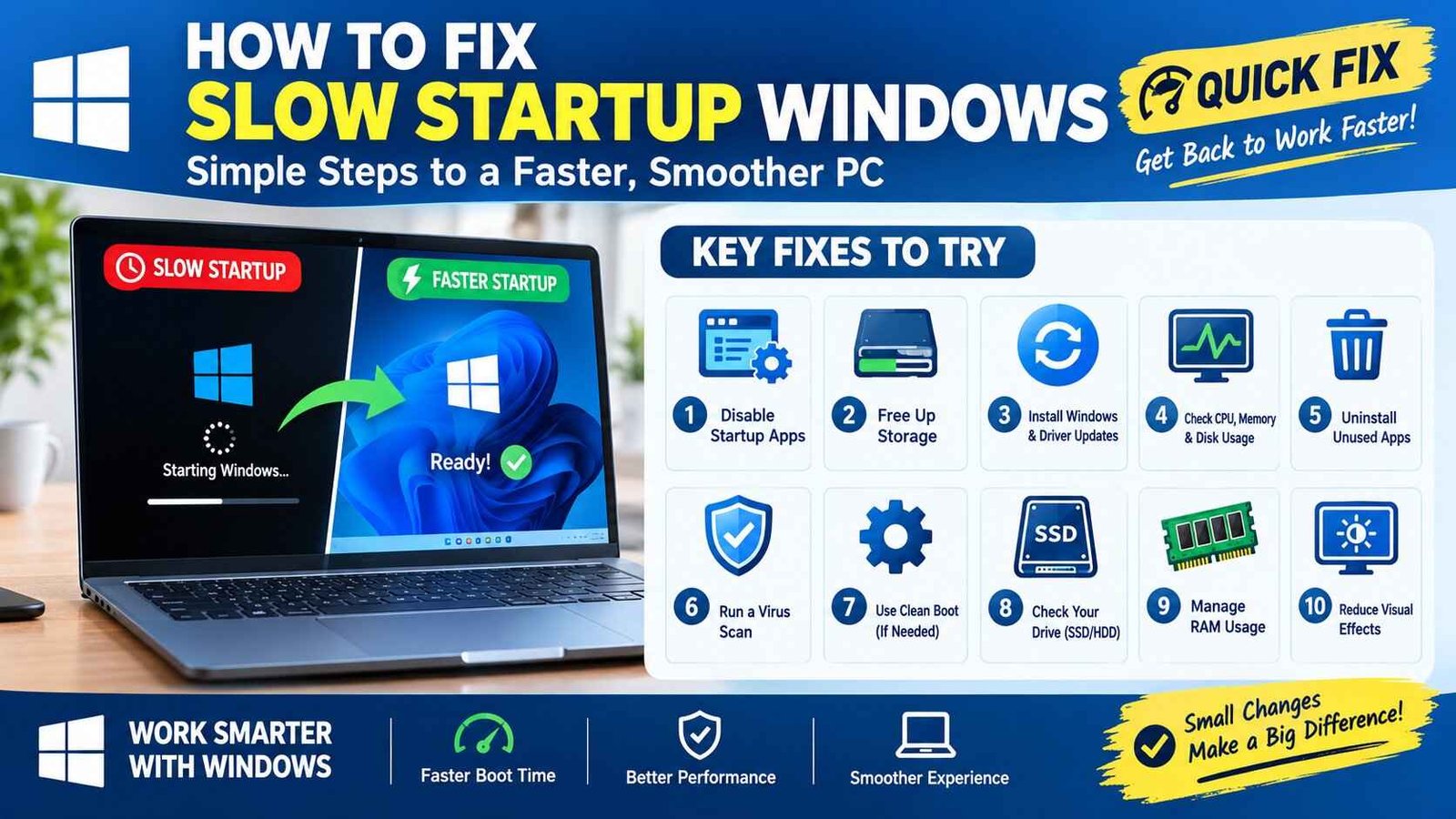
1. Disable Unnecessary Startup Apps
This is one of the first things to check when Windows takes a long time to become usable.
Many applications configure themselves to launch automatically when you sign in. Some are useful, but others do not need to start immediately.
Press:
Ctrl + Shift + Esc
to open Task Manager.
Select Startup apps from the left-hand menu.
Look through the list and check the startup impact of the applications.
If you see programs you do not need immediately after signing in, right-click them and choose Disable.
Do not disable everything.
For example, a program you use every day may benefit from starting automatically, while an application you only open occasionally may not need to run during every boot.
Microsoft specifically recommends disabling unnecessary startup apps because they can slow boot time and increase background activity.
2. Check Which Startup Apps Have the Biggest Impact
Don’t just count the number of startup applications.
Look at which ones have a High startup impact.
A single resource-heavy application can sometimes have more effect than several lightweight programs.
After disabling an unnecessary high-impact application, restart Windows and see whether startup improves.
If there is no noticeable difference, you can investigate another startup item.
This approach is safer than disabling everything at once because you can identify which change actually helped.
3. Free Up Space on Your Windows Drive
A nearly full system drive can contribute to performance problems and can also make Windows maintenance and updates more difficult.
Open:
Settings → System → Storage
Check how much space is available on your main drive.
Windows provides built-in storage tools that can help identify temporary files, installed applications, and other categories consuming space.
Remove unnecessary files and uninstall applications you no longer use.
Do not randomly delete folders from the Windows directory.
If you’re unsure about a file, leave it alone until you know what it is.
4. Uninstall Programs You Don’t Use
Old software can continue taking up storage and may install background services or startup components.
Go to:
Settings → Apps → Installed apps
Review the applications installed on your PC.
If you find programs you no longer use, uninstall them.
This is particularly useful if the computer has accumulated years of applications, trial software, game launchers, utilities, and programs that you installed once and forgot about.
Microsoft also recommends removing unused apps as part of improving Windows performance.
5. Check for Windows Updates
An outdated Windows installation can sometimes cause compatibility, driver, reliability, or performance problems.
Open:
Settings → Windows Update
and select Check for updates.
Install available updates and restart the computer when required.
Also check whether optional driver updates are available if you’re troubleshooting a hardware-related problem.
Microsoft notes that Windows updates can include fixes and performance improvements.
For computers used for work or important files, avoid interrupting an update once Windows has started installing it.
6. Check Your Drivers
Drivers allow Windows to communicate correctly with hardware such as graphics cards, storage devices, network adapters, and other components.
A problematic or outdated driver can sometimes contribute to startup or performance issues.
If your slow startup began after installing a new hardware component or driver update, pay particular attention to that change.
Use Windows Update or the hardware manufacturer’s official support channel rather than downloading drivers from unknown websites.
7. Check CPU, Memory and Disk Usage
Task Manager can help identify whether your computer is struggling with a particular resource.
Open Task Manager with:
Ctrl + Shift + Esc
Then look at the Processes and Performance sections.
Check CPU, Memory, and Disk usage.
If one application consistently consumes a large amount of resources immediately after startup, investigate that application.
For example, a cloud-sync program, security tool, browser process, or large software suite may take time to initialize.
Microsoft recommends using Task Manager to monitor resource usage and identify processes that may be slowing a PC.
8. Restart Instead of Always Using Sleep
If your computer has become unusually slow, a proper restart can sometimes clear temporary problems.
Select:
Start → Power → Restart
After restarting, give Windows a moment to finish background processes before opening many applications.
If the computer becomes slow again after every restart, that points toward an underlying startup or performance issue rather than simply needing an occasional reboot.
9. Check Background Apps
Some applications continue running background processes even when you are not actively using them.
Review applications that are allowed to run in the background and disable unnecessary background activity where Windows provides the option.
This can reduce the amount of work your PC performs after sign-in.
Be selective, however. Some applications require background access for notifications, syncing, security, or other features.
10. Reduce Unnecessary Visual Effects
Windows includes visual effects that make the interface look smoother, but older or lower-powered PCs may benefit from reducing them.
Search Windows for:
Adjust the appearance and performance of Windows
Open the performance options and consider selecting:
Adjust for best performance
This reduces visual effects in exchange for potentially better responsiveness.
Microsoft includes this as one of its recommended performance adjustments.
11. Try Best Performance Power Mode
On compatible Windows devices, you can check the power mode under:
Settings → System → Power & battery
If available, select Best performance.
This can help when you need maximum performance, but it can also increase power consumption and may make a laptop run warmer or drain its battery faster.
For a laptop, this setting may be more useful when plugged into power than when you’re trying to maximize battery life.
12. Optimize Your Drive
Windows includes built-in drive optimization tools.
Search for:
Defragment and Optimize Drives
Select the appropriate drive and choose Optimize.
Windows handles the appropriate optimization process for the drive.
Avoid downloading third-party “defrag” or registry-cleaning programs simply because they claim to dramatically speed up Windows.
The built-in Windows tools are usually the better starting point.
13. Check Whether Your Antivirus or Security Software Is Slowing Startup
Security software needs to inspect files and processes, so it can sometimes contribute to startup activity.
If your slow startup appeared after installing or changing security software, investigate whether that software is responsible.
Do not disable your security protection permanently just to test startup speed.
Instead, use the security application’s official troubleshooting options or support documentation.
Your goal should be to find a configuration that provides protection without unnecessarily slowing the computer.
14. Try a Clean Boot
If you have disabled unnecessary startup apps but Windows is still starting slowly, a clean boot can help determine whether a third-party service or startup program is responsible.
Microsoft’s clean-boot process uses System Configuration and Task Manager to start Windows with a reduced set of services and startup programs.
This is an advanced troubleshooting method, so don’t randomly disable Microsoft services.
If you use System Configuration, follow Microsoft’s procedure carefully and keep track of what you change.
Once troubleshooting is complete, return Windows to normal startup.
15. Repair Corrupted Windows System Files
If slow startup is accompanied by crashes, freezes, error messages, missing Windows features, or unusual system behavior, corrupted system files may be involved.
Microsoft provides two built-in tools:
DISM
and
System File Checker (SFC).
Microsoft recommends running DISM before SFC when repairing corrupted Windows components.
Open Command Prompt as administrator and run:
DISM.exe /Online /Cleanup-image /RestorehealthAfter it finishes, run:
sfc /scannowAllow the scans to finish completely.
Do not close the Command Prompt window while SFC is still verifying files.
These commands are useful when system corruption is suspected, but they should not be treated as a routine “speed boost” for every slow PC.
16. Check Whether the Storage Drive Is the Problem
The type and condition of your storage drive can have a major effect on startup.
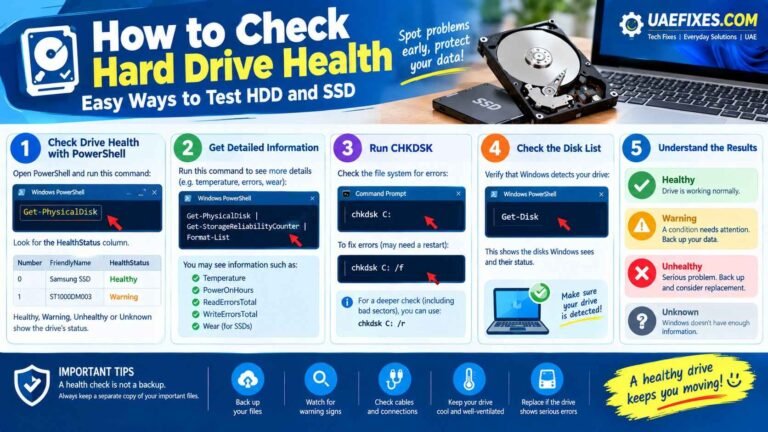
A computer using an older mechanical hard disk drive (HDD) may take substantially longer to boot than a similar computer using a solid-state drive (SSD).
If Windows takes a long time to start and the computer is several years old, storage hardware may be part of the explanation.
Before replacing a drive, back up important files.
If the drive is showing signs of failure, such as unusual noises, frequent freezes, file corruption, or disappearing files, prioritize data backup and professional assessment.
17. Don’t Ignore Low RAM
Startup speed is not determined by RAM alone, but insufficient memory can make Windows and startup applications compete for resources.
Open Task Manager and select Performance → Memory.
If memory usage is consistently very high, especially immediately after startup, investigate which programs are consuming it.
Closing unnecessary applications may help.
On some older computers, a RAM upgrade can provide a more meaningful improvement than installing another software optimizer.
18. Check for Malware
Malware can consume CPU, memory, storage, and network resources.
If startup suddenly became much slower, especially alongside unusual pop-ups, browser changes, unknown applications, or unexpected system activity, run a security scan using a trusted security solution.
Do not download questionable “Windows optimizer” programs that promise to repair hundreds of problems with one click.
Some can create more problems than they solve.
19. If Windows Takes a Long Time Before the Logo Appears
Pay attention to when the delay happens.
If the computer sits on a manufacturer’s logo or hardware screen before Windows begins loading, the problem may be related to firmware, BIOS/UEFI, connected hardware, or the boot device.
If Windows loads quickly but takes a long time after you enter your password, startup applications and Windows services are more likely to be involved.
This distinction can save a lot of troubleshooting time.
20. What If Windows Is Stuck or Won’t Start Properly?
A slow startup is different from Windows failing to boot.
If Windows repeatedly fails to start, enters a restart loop, displays a black or blue screen, or cannot reach the desktop, Microsoft’s Startup Repair tool may be appropriate.
Startup Repair runs through the Windows Recovery Environment and can attempt to repair certain problems involving damaged system files, boot configuration data, incompatible drivers, and related startup issues.
Don’t jump straight to resetting Windows if simpler recovery options can solve the problem.
Windows 11 Slow Startup: What Should You Check First?
If you’re using Windows 11, start with the simplest checks:
- Open Task Manager → Startup apps.
- Disable unnecessary high-impact startup programs.
- Check available storage.
- Install Windows and relevant driver updates.
- Check CPU, memory, and disk usage.
- Remove software you no longer need.
- Restart and compare the startup time.
If the problem continues, move to clean boot troubleshooting or system-file repair.
This approach makes it easier to identify the actual cause instead of changing many settings at once.
Windows 10 Slow Startup: What Should You Know?
The same troubleshooting principles apply to Windows 10.
However, there is an important current consideration: Microsoft ended support for Windows 10 on October 14, 2025. Microsoft no longer provides normal free software updates, technical assistance, or security fixes for Windows 10.
If your computer supports Windows 11, moving to a supported Windows version may be a better long-term solution than repeatedly trying to optimize an aging Windows 10 installation.
Slow Windows Startup After an Update
If your PC became slow immediately after a Windows update, don’t assume the update permanently damaged the computer.
Give Windows some time to finish background processes after the update and restart the machine.
Then check:
- Startup apps
- Windows Update status
- Optional driver updates
- Disk usage
- CPU and memory usage
- Recently installed applications
If the problem remains severe and clearly began after a particular change, Windows recovery options may provide a safer route than manually deleting system files.
Microsoft recommends using recovery options progressively, starting with less disruptive methods and backing up important files before using options that can result in data loss.
Why Is My Windows PC Slow Even After Disabling Startup Apps?
If startup apps are not the problem, look beyond the startup list.
Your computer may have limited free storage, insufficient RAM, an aging HDD, a problematic driver, corrupted system files, malware, or hardware that is simply too old for your current workload.
Microsoft notes that older PCs may not see significant improvement from software changes when the underlying hardware no longer meets modern performance needs.
At that point, a hardware upgrade may provide a much larger improvement than another software tweak.
How to Prevent Windows From Becoming Slow Again
You don’t need to constantly “clean” Windows.
Instead, develop a few simple habits.
Review startup applications occasionally.
Uninstall software you no longer use.
Keep enough free storage available.
Install Windows and important driver updates.
Avoid questionable system-cleaning utilities.
Don’t install several programs that perform the same background function.
And keep a backup of important files.
These habits can help prevent a slow-startup problem from returning.
Quick Checklist for a Slow Windows Startup
If you want the shortest troubleshooting route, start here:
First: Check Startup apps in Task Manager.
Second: Check free storage.
Third: Look at CPU, Memory, and Disk usage.
Fourth: Install Windows updates and relevant driver updates.
Fifth: Remove applications you no longer use.
Sixth: Restart the computer and compare startup performance.
Seventh: If the problem remains, investigate clean boot, system-file repair, or hardware limitations.
This sequence is much safer than randomly changing Windows services or registry settings.
When Should You Consider a Hardware Upgrade?
If your computer is several years old and still uses a mechanical HDD, moving Windows to an SSD can make a substantial difference in everyday responsiveness.
Likewise, if the system consistently runs out of memory, adding compatible RAM may help.
But hardware upgrades should be based on the actual limitation.
If Task Manager shows that storage, memory, or CPU is consistently the bottleneck, an upgrade may make sense.
If none of those resources are the problem, investigate software or configuration issues first.
Frequently Asked Questions
Why does Windows take so long to start?
Common causes include too many startup applications, low storage, outdated software or drivers, background processes, malware, corrupted system files, and aging hardware.
How do I make Windows start faster?
Start by opening Task Manager and disabling unnecessary startup applications. Then check storage, updates, background processes, and system resources.
How do I stop apps from opening when Windows starts?
Open Task Manager → Startup apps, select an unnecessary application, and choose Disable.
Does disabling startup apps improve Windows startup?
It can. Apps that automatically launch during startup can increase boot time and background activity.
Why is Windows 11 startup suddenly slow?
Look for a recent change such as a newly installed application, driver, Windows update, increased startup activity, low storage, or unusual resource usage.
Does low storage make Windows slow?
It can. Microsoft notes that running low on storage can affect performance and cause other Windows problems.
Does an SSD make Windows start faster?
Generally, an SSD can provide substantially faster storage performance than an older mechanical HDD, which can improve boot and application-loading times.
Should I use a PC cleaner to speed up Windows?
Be cautious. Start with Windows’ built-in performance, storage, startup, and recovery tools instead of relying on unknown cleaning or optimization software.
Can SFC fix slow Windows startup?
SFC is designed to scan and repair corrupted protected Windows system files. It may help when system corruption contributes to startup problems, but it is not a general-purpose speed-up tool.
When should I use Startup Repair?
Use Startup Repair when Windows has difficulty starting, such as repeated boot failures, certain startup errors, or problems reaching Windows normally.
Should I reset Windows if startup is slow?
Not as the first step. Try less disruptive troubleshooting first. If recovery becomes necessary, back up important files before using options that may affect applications or data.
Final Fix
A slow Windows startup is usually a diagnosis problem before it is a repair problem.
Don’t immediately reset Windows, edit the registry, or install a third-party PC optimizer.
Start with the simple things: startup apps, storage, updates, background processes, and Task Manager.
If those don’t solve the problem, move to clean boot troubleshooting, system-file repair, or hardware checks.
And if an older computer is still slow after sensible optimization, the limitation may no longer be Windows itself. An SSD, additional RAM, or a newer PC may provide the improvement that software settings cannot.
The best fix is the one that addresses the actual bottleneck rather than simply changing settings and hoping the computer becomes faster.
Visit UAEfixes for more Guides like this.