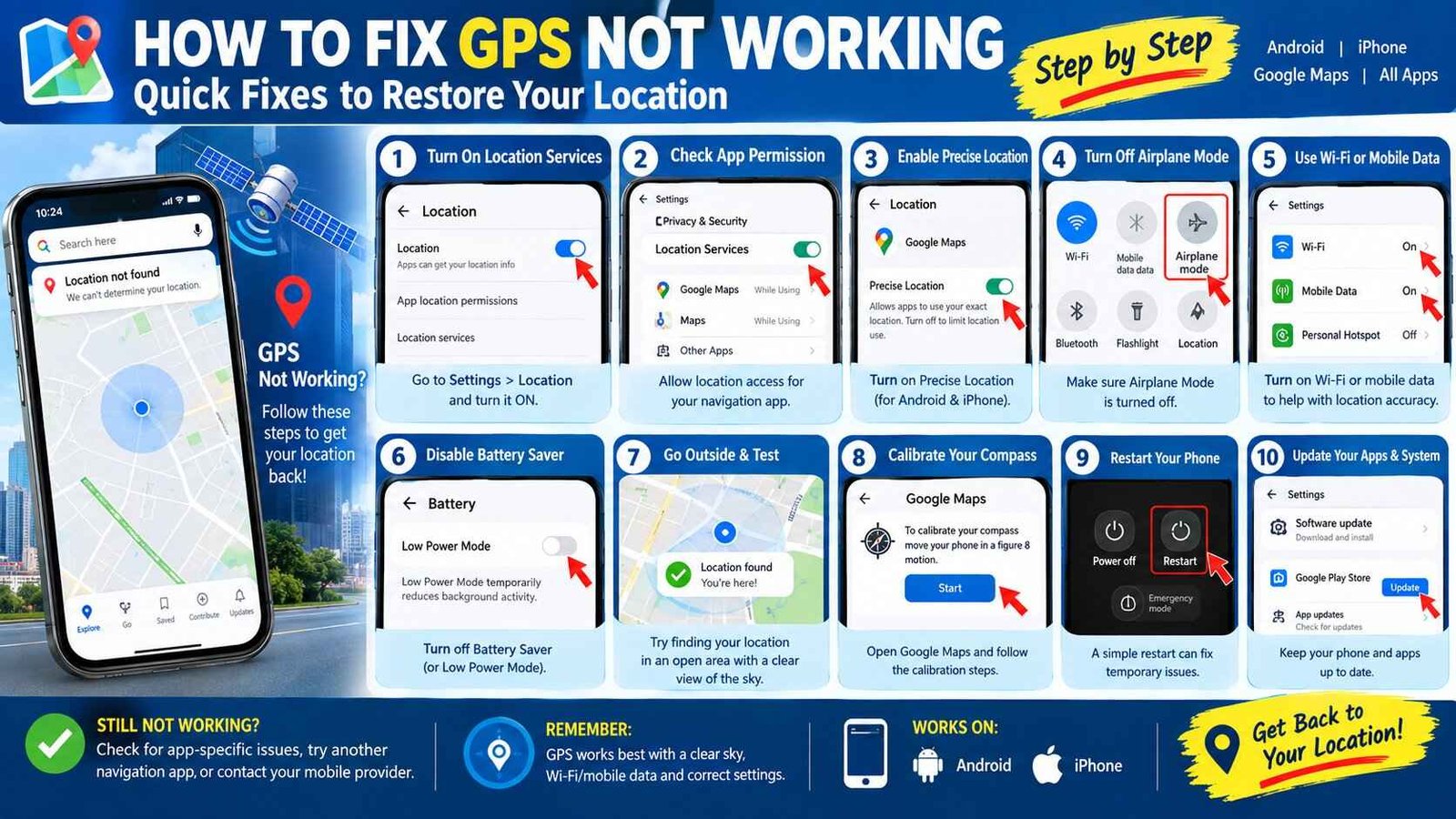
How to Fix GPS Not Working: Easy Ways to Restore Your Location
GPS is one of those phone features you usually notice only when it stops working. You open Google Maps, expect the blue dot to show your position, and instead it stays stuck, jumps around, shows the wrong location, or says your location cannot be found.
If GPS is not working on your phone, the problem is not always a damaged GPS sensor. Location services can use GPS satellites, Wi-Fi networks, mobile networks, Bluetooth, and device sensors to estimate your position. This is particularly important indoors, in parking garages, or around tall buildings where satellite signals can be blocked or weakened.
Safety Note
Before changing advanced phone settings or resetting anything, make sure important data is backed up. For official troubleshooting, use the location and Maps guidance provided by Google Android Help and Apple Support. You can also find more practical technology fixes and troubleshooting guides here on UAEFIXES.COM.
Why Is GPS Not Working?
There are several reasons your phone may have trouble finding your location:
- Location Services is turned off.
- The app does not have location permission.
- Precise location is disabled.
- Location Accuracy is turned off on Android.
- Airplane Mode is enabled.
- Wi-Fi or mobile data is unavailable.
- Battery Saver is restricting location activity.
- You are indoors or surrounded by tall buildings.
- The phone’s compass needs calibration.
- The Maps app has temporarily stopped responding.
- A software update or app problem is affecting location services.
- The phone may have a hardware problem.
The first step is therefore to determine whether the problem affects one app or the entire phone.
1. Turn Location Services Off and On
The quickest fix is to refresh your phone’s location service.
Turn Location Services off, wait a few seconds, and turn it back on.
Then open Google Maps, Apple Maps, or another navigation app and check whether your current position appears.
If the location starts working again, the problem may have been a temporary software or location-service glitch.
2. Check Your App’s Location Permission
Sometimes GPS is working correctly but the application cannot access it.
On Android
Open:
Settings → Location → App location permissions
Find the affected app and make sure it is allowed to use your location.
For navigation apps, choose the most appropriate permission and enable precise location when available.
Android also separates app location permissions from the device’s overall Location Accuracy setting, so checking both is important.
On iPhone
Go to:
Settings → Privacy & Security → Location Services
Make sure Location Services is enabled.
Then select the affected application and allow location access. Apple specifically recommends checking that Maps has Location Services enabled when the current location cannot be found.
3. Turn On Location Accuracy on Android
If you use Android and GPS is inaccurate, check Location Accuracy.
Go to:
Settings → Location → Location Services → Location Accuracy
Then turn on:
Improve Location Accuracy
Depending on your Android version or phone manufacturer, the menu names may be slightly different.
Google explains that Location Accuracy can combine GPS, Wi-Fi, cellular networks, and device sensors to determine your position more quickly and accurately. This can be especially useful indoors or where GPS satellite signals are obstructed.
4. Turn Off Airplane Mode
Airplane Mode can interfere with the connectivity that location services use.
Check your Quick Settings or Control Center and make sure Airplane Mode is turned off.
If it is already off, you can briefly turn Airplane Mode on and then off again. This can refresh the phone’s wireless connections.
Afterward, open your navigation app and test your location again.
5. Turn On Wi-Fi or Mobile Data
GPS does not always work completely by itself.
Modern location systems can use Wi-Fi and cellular information together with GPS to improve positioning. Google notes that Wi-Fi, mobile networks, GPS, and device sensors can all contribute to location accuracy.
If your GPS is showing an old location or taking too long to find you, turn on Wi-Fi or mobile data and try again.
You do not necessarily need to connect to a Wi-Fi network for every location feature, but having wireless connectivity available can help location services determine your position.
6. Move Outside and Test GPS
If GPS is not working inside a building, don’t immediately assume the phone is broken.
Try testing it outside with a clear view of the sky.
GPS signals can become weaker or unavailable inside buildings, underground areas, parking garages, and places surrounded by tall structures. Google specifically notes that buildings and other obstructions can make a blue-dot location inaccurate.
This is especially useful as a simple diagnostic test.
If GPS works outside but not inside, your phone’s GPS hardware may be fine.
7. Restart Your Phone
A simple restart can fix temporary problems with GPS, Bluetooth, mobile connectivity, background services, and navigation apps.
Restart the phone and wait until it has completely loaded.
Then:
- Turn on Location Services.
- Turn on Wi-Fi or mobile data.
- Open your Maps app.
- Wait for the location to appear.
- Test navigation.
Google recommends restarting an Android device when location accuracy problems continue.
8. Calibrate Google Maps
If your location is visible but the blue arrow points in the wrong direction, the issue may involve compass calibration rather than GPS itself.
Open Google Maps and check the blue location dot.
If the direction is inaccurate, Google recommends calibrating the compass by moving the phone in a figure-eight motion several times.
You can also follow the calibration instructions displayed directly in Google Maps when available.
This can help when:
- The blue arrow points the wrong way.
- Your direction keeps changing.
- The map rotates incorrectly.
- Walking navigation appears confused.
9. Turn Off Battery Saver Temporarily
Battery-saving modes can restrict background activity and certain phone functions.
If your location keeps jumping or stops updating while navigating, temporarily turn off Battery Saver or Low Power Mode and test again.
Google specifically lists Battery Saver as something to check when an Android location keeps jumping around in Maps.
If GPS works normally afterward, review your battery settings and app restrictions.
10. Check Date, Time and Time Zone
Incorrect date, time, or time-zone settings can cause problems with location-based services.
On an iPhone, Apple recommends checking that the device has the correct date, time, and time zone when Maps cannot determine the current location.
Where available, enable automatic date and time.
Then restart the Maps application and check your location again.
11. Update Google Maps or Your Navigation App
If GPS works in one application but not another, the problem may be app-specific.
Check the relevant app store for updates.
For example, if Google Maps cannot find your location but another navigation app works normally, update Google Maps and restart it.
You can also close and reopen the application before trying more complicated fixes.
12. Check for Phone Software Updates
An outdated operating system can sometimes cause compatibility or location-service problems.
Check your phone’s software update section and install available updates from the device manufacturer.
After updating, restart the phone and test GPS again.
Avoid downloading unofficial firmware or unknown GPS-fixing applications simply because they claim to repair your location sensor.
13. Clear Maps Cache on Android
If Google Maps is behaving strangely on Android, clearing its temporary cache may help.
The exact menu differs between manufacturers, but it is generally found under:
Settings → Apps → Maps → Storage → Clear Cache
Avoid choosing options that delete important application data unless you understand what they remove.
After clearing the cache, reopen Google Maps and test the location.
14. GPS Works but Shows the Wrong Location
A wrong location is different from GPS completely failing.
If your phone shows a location several streets away, check:
- Location Accuracy.
- Precise location permission.
- Wi-Fi.
- Mobile data.
- Battery Saver.
- Compass calibration.
- Whether you are indoors.
- Whether the map has a large accuracy circle around the blue dot.
Google Maps explains that a large light-blue circle around the location dot indicates uncertainty about the exact position.
Try moving outside and waiting for the location to stabilize.
15. GPS Keeps Saying “Searching for GPS”
If your navigation app continuously says it is searching for GPS, try this sequence:
- Go outside.
- Turn Location Services off and on.
- Turn Airplane Mode off.
- Turn on Wi-Fi or mobile data.
- Disable Battery Saver temporarily.
- Restart the phone.
- Open Maps again.
- Wait for the location to lock.
Give the phone some time to establish a reliable position instead of immediately changing several settings at once.
16. GPS Not Working on iPhone
If GPS is not working on an iPhone, start with Apple’s basic checks.
Go to:
Settings → Privacy & Security → Location Services
Make sure Location Services is turned on.
Then check the affected app’s permission.
Apple also recommends checking the device’s date, time and time zone, ensuring Wi-Fi or cellular connectivity is available, closing and reopening Maps, and restarting the device when the current location cannot be found.
17. GPS Not Working on Android
For Android phones, check these settings first:
Settings → Location
Then verify:
- Location is ON.
- Location Accuracy is ON.
- The affected app has location permission.
- Precise location is enabled where appropriate.
- Wi-Fi or mobile data is available.
- Battery Saver is not restricting the navigation app.
Google says Android Location Accuracy can combine GPS, Wi-Fi, cellular networks and sensors to improve location results.
18. GPS Not Working in Google Maps
If the problem specifically happens in Google Maps, look at the blue location dot.
A gray or missing blue dot can mean Maps cannot determine your current position and may instead display your last known location.
Try:
Location Services → App Permission → Location Accuracy → Wi-Fi/Mobile Data → Compass Calibration → Restart
This sequence covers many common Maps location problems without immediately resetting the entire phone.
19. GPS Not Working After a Phone Update
If GPS stopped working immediately after a software update, first restart the device and check for another available update.
Then test GPS in more than one application.
If every navigation app has the same problem, the issue is more likely related to the phone’s location services or system software than a single application.
If only one app has the problem, focus on its permissions, cache, settings, and updates.
20. When GPS Hardware May Be the Problem
If GPS fails everywhere—including outside with a clear view of the sky—and multiple navigation apps cannot determine your location, hardware could be involved.
This becomes more likely if:
- The phone was recently dropped.
- The phone suffered water damage.
- GPS stopped working suddenly after physical damage.
- Location fails consistently in multiple apps.
- Restarting and software troubleshooting does not help.
- Other sensors or connectivity features are also behaving abnormally.
At that point, professional device diagnostics may be more useful than repeatedly changing software settings.
What Not to Do When GPS Stops Working
Avoid installing random “GPS booster” or “GPS repair” applications that promise to fix a damaged GPS sensor.
Also avoid opening the phone yourself unless you have the appropriate repair experience.
Changing advanced system settings without knowing what they do can create additional problems.
Start with the simple checks—permissions, Location Services, Location Accuracy, connectivity, calibration and restart—before considering more advanced solutions.
Quick GPS Fix Checklist
If you need a fast solution, try these steps in order:
- Turn Location Services on.
- Check the app’s location permission.
- Enable Precise Location where available.
- Turn on Android Location Accuracy.
- Turn off Airplane Mode.
- Turn on Wi-Fi or mobile data.
- Disable Battery Saver temporarily.
- Go outside with a clear view of the sky.
- Calibrate the compass.
- Restart the phone.
- Update the Maps app.
- Install available phone software updates.
Frequently Asked Questions
Why is my GPS not working?
GPS may stop working because Location Services is disabled, an app lacks permission, Location Accuracy is turned off, wireless connectivity is unavailable, GPS signals are obstructed, or the phone has a software or hardware problem.
Why does GPS work outside but not inside?
Buildings, underground areas and other obstructions can weaken or block satellite signals. Phones can use Wi-Fi, cellular networks and sensors to improve location estimates when GPS is difficult to access.
Why is my GPS location wrong?
Check Location Accuracy, precise location permissions, Wi-Fi or mobile data, Battery Saver and compass calibration. Also test the phone outdoors.
How do I fix GPS not working on Android?
Turn on Location, enable Location Accuracy, check the app’s precise location permission, turn on Wi-Fi or mobile data, disable Battery Saver temporarily, calibrate Maps and restart the phone.
How do I fix GPS not working on iPhone?
Check Settings → Privacy & Security → Location Services, verify the affected app’s permission, check date and time settings, make sure Wi-Fi or cellular data is available, then restart the iPhone.
Why does Google Maps show my old location?
Maps may show the last known location when it cannot determine your current position. Check Location Services, Location Accuracy, connectivity and GPS signal strength.
Do I need internet for GPS?
GPS can determine location using satellite signals, but modern phones can combine GPS with Wi-Fi, cellular networks and sensors to improve speed and accuracy. An internet connection can therefore help location services, especially when GPS signals are weak or obstructed.
Final Fix
When GPS is not working, don’t assume the GPS hardware has failed. Start with the basics: turn on Location Services, check app permissions, enable Location Accuracy, turn off Airplane Mode and Battery Saver, connect to Wi-Fi or mobile data, move outside, calibrate the compass and restart the phone.
If GPS still fails across multiple apps in an open outdoor area, especially after a drop or water damage, professional hardware testing may be the next step.