How to Fix Wi-Fi: Weak Signal, Connection Problems and Home Wi-Fi Issues
When Wi-Fi suddenly becomes slow, keeps disconnecting, or refuses to connect in one room of your home, the problem is not always your internet provider. Sometimes the router is simply in the wrong place. Other times, too many devices are competing for bandwidth, the Wi-Fi signal is struggling to pass through walls, or the device itself has a connection problem.
This is especially frustrating at home because everything depends on the same connection. Your phone may work perfectly near the router while the TV, laptop, or smart device in another room struggles to stay online.
The good news is that most Wi-Fi problems can be narrowed down without immediately replacing the router. The key is to identify whether you have a Wi-Fi signal problem, a device problem, or an internet service problem.
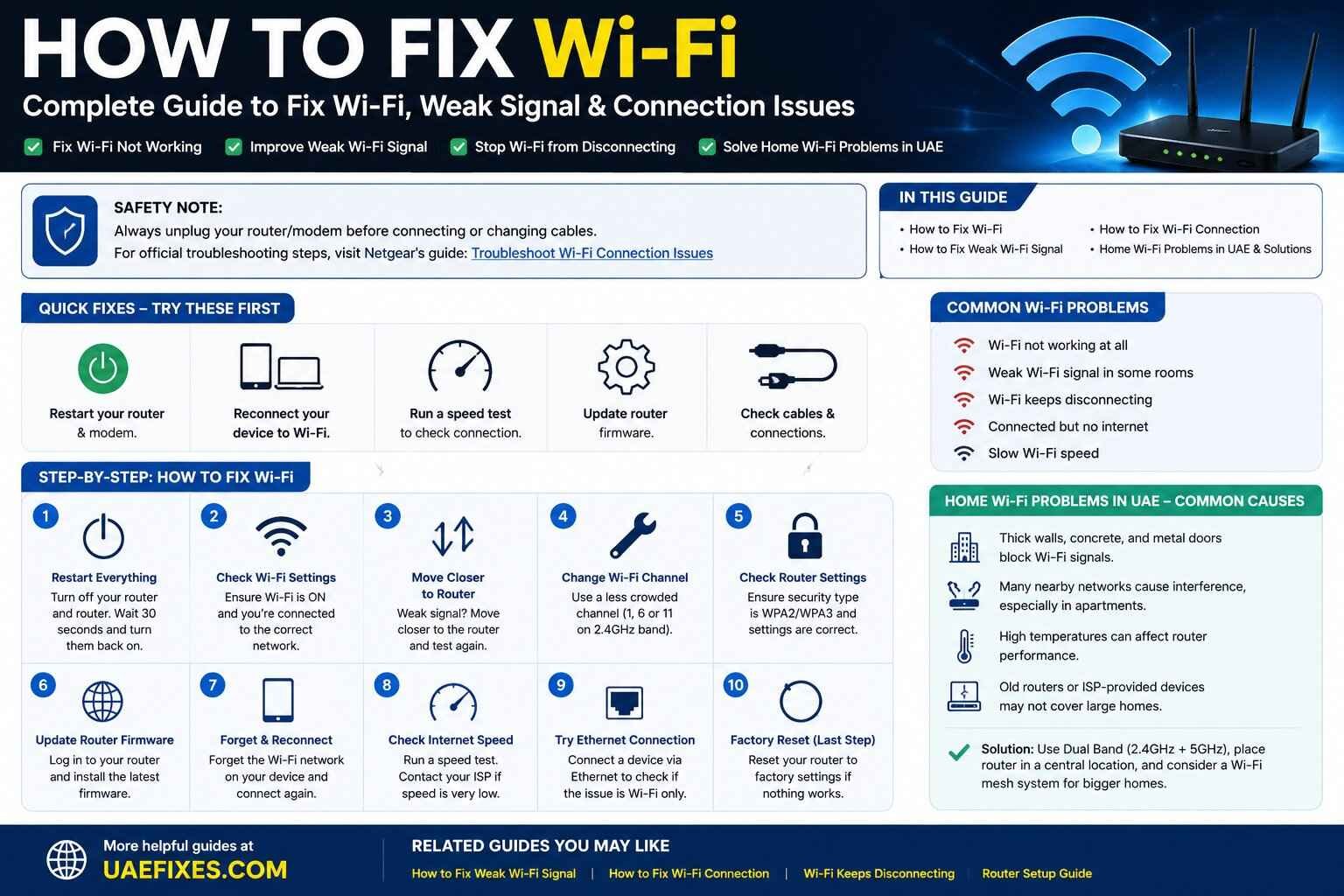
⚠️ Safety Note: Unplug your router or modem before changing physical cables or connections, and never open the device unless you know how to work safely with electronic equipment. For official Wi-Fi troubleshooting and network-performance guidance, see Google’s Wi-Fi support resources like TDRA.
What Is Actually Wrong With Your Wi-Fi?
Before trying random fixes, look at what the connection is doing.
If your device cannot see the Wi-Fi network at all, the problem is different from a network that appears but refuses to connect.
If you can connect but the signal is weak in certain rooms, you are probably dealing with a coverage problem.
If the Wi-Fi signal looks strong but websites are still slow or nothing loads, the problem could be the router’s internet connection, your ISP, DNS, congestion, or the individual device.
And if every device in the house suddenly loses internet access, the router or internet service deserves attention before you start changing settings on individual phones and laptops.
Start With the Simple Fix: Restart the Router
A restart is one of the easiest things to try, but it works for a reason.
Routers run continuously and manage multiple connections, network requests, and wireless traffic. A temporary software or connection problem can sometimes clear after a restart.
Turn off the router and, if you have a separate modem or fibre terminal, follow the manufacturer’s recommended restart procedure.
Wait for the equipment to shut down completely, then power it back on and give it time to reconnect to the internet.
Don’t restart the router repeatedly every few minutes. If the same problem keeps returning, that is a clue that something else needs attention.
Check Whether the Problem Affects One Device or Everything
This is one of the most useful Wi-Fi troubleshooting tests.
Try connecting a second device to the same network.
If your phone cannot connect but your laptop works normally, the router may not be the problem.
If your laptop, phone, television, and other connected devices all have the same issue, investigate the router or internet connection.
This simple comparison can prevent you from resetting a perfectly healthy router when the real problem is limited to one device.
How to Fix Wi-Fi That Is Not Connecting
If your device sees your Wi-Fi network but will not connect, start by forgetting the network.
On the affected device, remove or forget the saved Wi-Fi network and then connect again using the correct password.
This can clear an outdated or corrupted saved connection.
Also make sure you are selecting your actual home network rather than a nearby network with a similar name.
If several devices cannot connect, restart the router and check whether the router is actually providing internet service.
If only one device refuses to connect while everything else works, focus your troubleshooting on that device.
How to Fix a Weak Wi-Fi Signal
A weak Wi-Fi signal is usually a coverage problem rather than an internet-speed problem.
The first thing to check is distance.
Move the device closer to the router and test the connection again.
If the Wi-Fi becomes much better when you are near the router, the internet service may be perfectly fine. The problem is that the wireless signal is not reaching the area strongly enough.
Router placement matters more than many people realise.
A router hidden inside a cabinet, placed behind large furniture, or positioned at one end of a large home has a harder job covering the entire property.
For better coverage, place the router in a relatively open and central position where practical.
Google’s Wi-Fi guidance also recommends reducing physical obstructions and positioning Wi-Fi points appropriately to improve coverage and reliability.
Why Walls Can Make Wi-Fi Worse
Your home is not an empty wireless environment.
Walls, doors, furniture, appliances, and building materials can weaken or obstruct a Wi-Fi signal.
This becomes particularly noticeable in larger homes, apartments with thick walls, or properties where the router is located far away from the rooms where the connection is needed.
If one room consistently has poor Wi-Fi while the room next to the router works perfectly, don’t immediately blame your internet plan.
Test the same device in different locations.
If performance changes dramatically based on location, coverage is probably part of the problem.
How to Improve Wi-Fi Coverage in a UAE Home
Home layouts in the UAE can vary significantly, from apartments to large villas and multi-level homes.
A router that works well in a small apartment may struggle to provide reliable coverage across a larger villa with multiple rooms, thick walls, or multiple floors.
In that situation, simply buying a faster internet package may not solve the problem.
You may need a better Wi-Fi setup.
A mesh Wi-Fi system can be useful for larger homes because additional Wi-Fi points can extend coverage into areas that are difficult for a single router to reach.
The important part is placement. A mesh point should not simply be placed in the room where the signal is already extremely weak. It needs a good connection back to the main router so it can properly extend the network.
Why Your Wi-Fi Is Slow Even With a Strong Signal
A strong Wi-Fi icon does not necessarily mean you have a fast internet connection.
Your device may have an excellent connection to the router while the router itself has a slow connection to the internet.
Other devices may also be consuming bandwidth.
Someone watching high-resolution video, downloading a large game, backing up photos, or using cloud services can affect available bandwidth for other devices, depending on the internet connection and network equipment.
If your Wi-Fi feels slow, run a speed test near the router and then another test in the location where the problem occurs.
If the speed is good near the router but poor farther away, coverage is a stronger suspect.
If the speed is poor everywhere, investigate the router, internet service, or ISP.
How to Fix Wi-Fi Connection Problems
Wi-Fi connection problems can include frequent disconnections, difficulty joining the network, slow speeds, or a connection that works for a few minutes before stopping.
Start by checking whether the problem affects one device or multiple devices.
Then restart the router and test the connection again.
If the problem continues, check the router’s cables and indicator lights.
A loose connection between your fibre equipment, modem, router, or power supply can create symptoms that look like a wireless problem.
If you have a separate modem or fibre terminal provided by your ISP, check that it is operating normally before changing advanced router settings.
What If Wi-Fi Keeps Disconnecting?
Frequent disconnections deserve a little more investigation.
First, determine whether every device disconnects or only one.
If only one phone or laptop keeps disconnecting, forget the Wi-Fi network and reconnect. Also check for device software updates and test the device on another network.
If every device disconnects at approximately the same time, the router, internet connection, or ISP becomes more likely to be responsible.
Wireless interference can also cause unreliable connections. Nearby networks and other electronic devices can contribute to interference, particularly in areas with many apartments and networks operating close together.
Google recommends checking router placement, reducing interference, and testing different network conditions when troubleshooting wireless reliability.
Try Moving the Router
Router placement is one of the cheapest fixes because it may cost nothing.
Avoid placing the router inside a closed cabinet if possible.
Don’t hide it behind a television or large piece of furniture.
If your router has antennas, position them according to the manufacturer’s guidance rather than covering or obstructing them.
A more open and central position can improve the connection to multiple rooms.
In a larger UAE home, moving the router even a relatively small distance can sometimes make a noticeable difference in one problem area.
Check the 2.4 GHz and 5 GHz Networks
Many modern routers provide both 2.4 GHz and 5 GHz Wi-Fi.
They behave differently.
The 2.4 GHz band generally travels farther and can be more useful when a device is farther from the router.
The 5 GHz band can provide higher speeds at shorter distances, although walls and distance can reduce its advantage.
If your router provides separate network names for the two bands, test both.
A device that struggles on 5 GHz in a distant room may perform more reliably on 2.4 GHz.
Some newer routers manage the bands automatically, so the available settings depend on the equipment and ISP configuration.
Check How Many Devices Are Using the Network
Your home network may have more connected devices than you realise.
Phones, laptops, televisions, gaming consoles, cameras, smart speakers, appliances, tablets, and other devices can all consume bandwidth.
If your internet becomes slow at particular times of day, check what is happening on the network during those periods.
Large downloads, cloud backups, software updates, streaming, and gaming can all compete for available capacity.
If the network is constantly busy, upgrading equipment or internet service may make more sense than repeatedly restarting the router.
Update Your Router Firmware
Router firmware contains the software that controls the device.
Manufacturers sometimes release updates that improve stability, security, compatibility, or performance.
Check your router manufacturer’s instructions before updating firmware.
If your router was supplied by your UAE internet provider, the ISP may manage updates automatically or provide specific instructions.
Avoid downloading firmware from random websites. Use the router manufacturer’s official support page or your ISP’s instructions.
Check Your Internet Speed
A speed test can help determine whether the problem is inside your home or beyond it.
Run the test close to the router first.
Then test from the location where you normally experience the problem.
If the speed is strong near the router but poor in another room, focus on Wi-Fi coverage.
If speeds are consistently poor even beside the router, the problem may be related to the router, network configuration, or your internet service.
Remember that advertised internet speeds and actual Wi-Fi performance are not always the same thing. Wi-Fi performance depends on the router, device, distance, interference, building layout, network traffic, and other factors.
Try an Ethernet Connection
If you have a laptop, desktop, gaming console, or other device that supports Ethernet, a wired test can be extremely useful.
Connect the device directly to the router using Ethernet and compare the result with Wi-Fi.
If Ethernet works well but Wi-Fi remains slow or unstable, the internet connection itself may be fine and the wireless network needs attention.
If Ethernet is also slow or unreliable, investigate the router, modem, fibre equipment, or ISP connection.
This is one of the best ways to separate an internet problem from a Wi-Fi problem.
Home Wi-Fi Problems in the UAE
A home Wi-Fi problem in the UAE can have the same basic causes found elsewhere, but local conditions can influence how the problem appears.
Large villas, multiple floors, thick walls, apartment buildings with many nearby wireless networks, and long distances between the router and bedrooms or work areas can all create coverage challenges.
Heat is another practical consideration.
Routers and networking equipment should have adequate ventilation and should not be placed somewhere that traps excessive heat.
If the router is sitting in a closed cabinet or directly exposed to a hot environment, improving ventilation and placement is worth considering.
Your internet provider also matters.
If you have tested multiple devices, restarted the equipment, checked cables, and confirmed that the problem affects the entire connection, the issue may be with the service rather than your home Wi-Fi.
When Should You Contact Your UAE Internet Provider?
Contact your ISP when the problem appears to be affecting the internet connection itself rather than just wireless coverage.
For example, if Ethernet is also slow, the router repeatedly loses its internet connection, or several devices lose access at the same time, the provider may need to check the line or service.
If you are a customer of a UAE telecom provider and troubleshooting does not resolve the problem, use the provider’s official support channel first.
If a telecom-service complaint is not satisfactorily resolved, the UAE Telecommunications and Digital Government Regulatory Authority (TDRA) provides a dispute-resolution service for consumers dealing with approved telecom service providers.
Should You Buy a Wi-Fi Extender?
A Wi-Fi extender can help in some situations, but it is not automatically the best solution.
If the main router is poorly positioned, moving it may solve the problem without buying anything.
If the home is large and coverage remains weak, a mesh system may provide a better overall experience than a basic extender.
The right solution depends on the size and layout of the home, the router, the number of users, and where the weak areas are located.
Don’t buy networking equipment until you have identified where the signal problem actually exists.
Should You Reset the Router?
A factory reset should be treated as a last resort.
Resetting a router can erase network names, passwords, security settings, ISP configuration, parental controls, port settings, and other custom settings.
If your ISP manages the router, a factory reset can also create additional configuration problems.
Try restarting the router first.
Check cables, placement, devices, speed, and settings before performing a factory reset.
If you do need to reset it, make sure you know how the router needs to be configured afterward.
What If Nothing Fixes the Wi-Fi?
If you have tested several devices, moved closer to the router, restarted the network, checked cables, tested Ethernet, and confirmed that the problem affects the entire home, it may be time to stop troubleshooting from the device side.
At that point, the issue could be the router, fibre equipment, internet service, interference, or the physical layout of the home.
A good troubleshooting process is not about trying every possible setting.
It is about eliminating possibilities until the remaining cause becomes clear.
Frequently Asked Questions
How do I fix Wi-Fi?
Start by restarting the router, checking whether the problem affects one or multiple devices, testing closer to the router, checking cables, and running a speed test. If the problem continues across multiple devices, investigate the router or internet service.
How do I fix a weak Wi-Fi signal?
Move closer to the router and test the connection. If the signal improves, reposition the router in a more central and open location. For larger homes, a mesh Wi-Fi system may provide better coverage.
How do I fix a Wi-Fi connection that keeps dropping?
Check whether all devices disconnect or only one. Restart the router, reconnect the affected device, check cables, reduce interference, and test the connection using Ethernet if possible.
Why is my Wi-Fi slow in one room?
Distance, walls, doors, furniture, interference, and router placement can weaken Wi-Fi in certain areas. Test the same device near the router to determine whether the issue is coverage.
Why is Wi-Fi strong but the internet is slow?
A strong Wi-Fi signal only shows that your device has a good connection to the router. The internet connection from the router to your ISP can still be slow.
Is 5 GHz better than 2.4 GHz?
Not in every situation. 5 GHz can provide higher speeds at shorter distances, while 2.4 GHz generally provides better range. The best choice depends on your router, device, distance, and home layout.
Should I buy a Wi-Fi extender for my home?
Not necessarily. First check router placement and identify where the weak signal occurs. A mesh system may be more suitable for larger homes or multiple floors.
Why does Wi-Fi keep disconnecting in my UAE home?
Possible causes include router placement, interference from nearby networks, weak coverage, overloaded equipment, device problems, or an unstable internet connection. Test multiple devices and compare Wi-Fi with Ethernet if possible.
When should I contact my internet provider?
Contact your provider when several devices have the same problem, Ethernet is also affected, or the router repeatedly loses its internet connection. The ISP may need to check the service or equipment.
Final Fix
The best way to fix Wi-Fi is to stop treating every problem as an internet-speed problem.
First find out where the problem occurs.
If it only happens far from the router, think coverage.
If one device is affected, investigate the device.
If every device is affected, investigate the router or internet service.
If Ethernet works but Wi-Fi does not, focus on the wireless network.
And if nothing inside the home explains the problem, your ISP may need to investigate the connection.
For UAE homes, especially larger villas and properties with multiple rooms or floors, good router placement and the right Wi-Fi system can make a bigger difference than simply paying for a faster internet package.
UAEFIXES.COM will continue building practical guides around specific Wi-Fi problems, including weak Wi-Fi signals, Wi-Fi disconnections, and other home networking issues, so you can diagnose the problem before spending money on a solution.