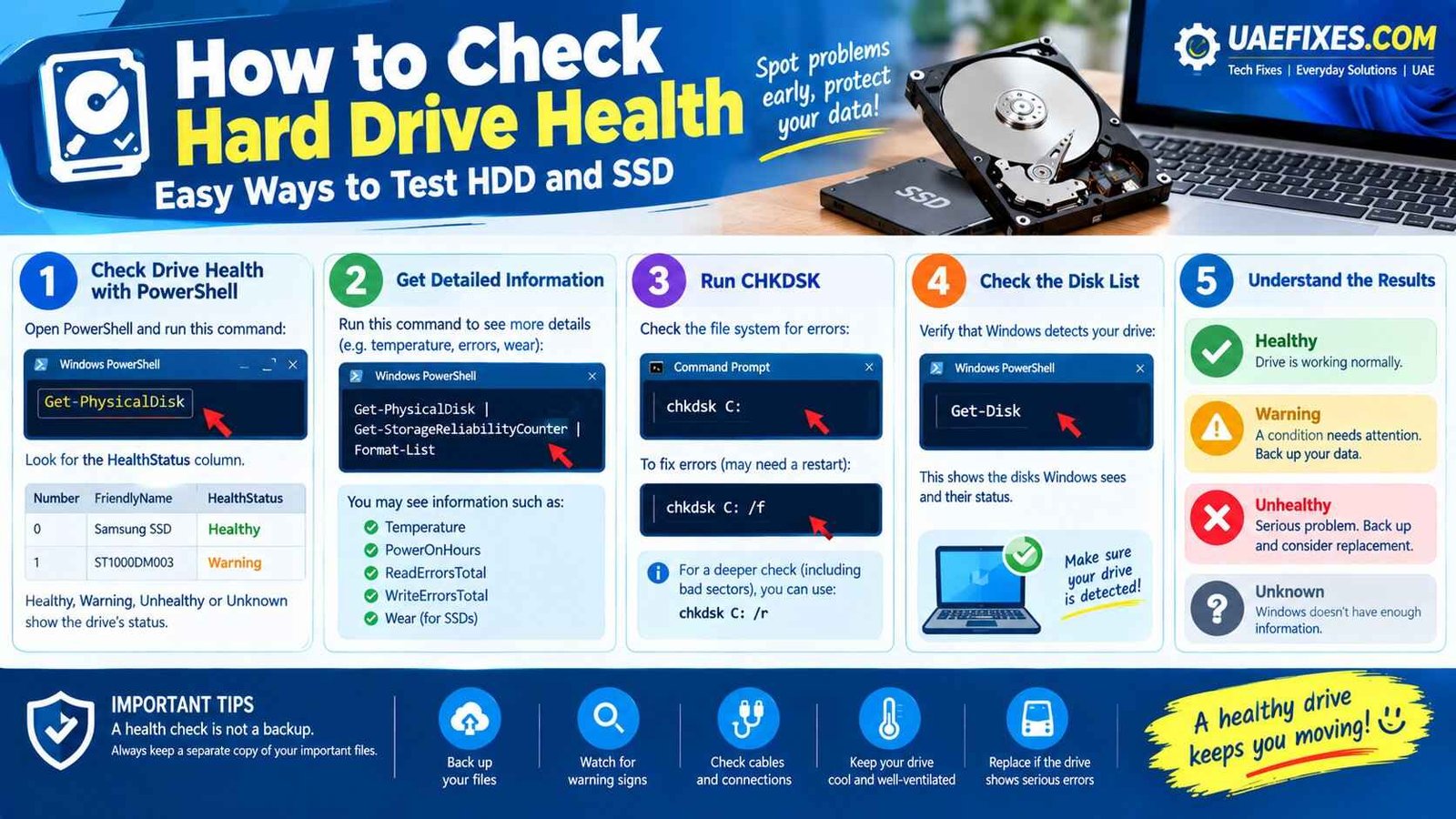
How to Check Hard Drive Health: Easy Ways to Test HDD and SSD
Your computer can seem completely fine while its storage drive is quietly starting to fail.
Maybe Windows has become slower than usual. Maybe files take longer to open. Perhaps you have noticed freezing, strange noises from an older HDD, or occasional errors that seem to disappear after restarting.
These signs don’t always mean your hard drive is dying, but they are good reasons to check its health before a small problem becomes a painful one.
The good news is that you don’t need to be a computer expert to perform a basic hard drive health check. Windows includes several useful tools that can help you check your HDD or SSD and identify possible problems.
In this guide, we’ll look at simple ways to check hard drive health in Windows, understand what the results mean, and know when it’s time to back up your files or replace the drive.
Safety Note: Back Up Important Files First
Safety Note: Back Up Important Files First
Before testing or troubleshooting a drive that you suspect may be failing, back up your important files.
If the drive is making unusual noises, frequently disconnecting, freezing, showing errors, or becoming extremely slow, don’t wait for it to completely fail before copying your photos, documents and other important data.
Microsoft recommends keeping backups of important files to help protect against data loss. You can follow Microsoft’s official guidance on Windows Backup for safe backup options: Microsoft Windows Backup – Official Guide
If your drive is showing serious signs of failure, avoid unnecessary repairs or repeated disk tests until your important data is safely backed up.
For more practical computer and technology solutions, you can also find useful guides here on UAEFIXES.COM.
What Does Hard Drive Health Actually Mean?
When people say they want to check their “hard drive health,” they are usually asking whether the storage device is operating normally or showing signs of failure.
There are two common types of internal storage:
- HDD (Hard Disk Drive) — uses spinning magnetic disks and moving parts.
- SSD (Solid-State Drive) — uses flash memory and has no spinning platters.
The checks and warning signs can be slightly different, but the basic goal is the same:
Find problems early enough to protect your data.
Signs Your Hard Drive May Be Failing
You don’t always need a diagnostic tool to notice that something is wrong.
Watch for signs such as:
- Windows suddenly becoming very slow
- Files taking unusually long to open
- Frequent freezing
- Files becoming corrupted
- Unexpected disk errors
- Applications crashing when accessing files
- The drive disappearing from Windows
- Repeated read/write errors
- An HDD making unusual clicking or grinding sounds
- Frequent blue-screen errors related to storage
One symptom by itself doesn’t automatically mean the drive is failing.
But if several appear together, take them seriously.
Method 1: Check Drive Health With PowerShell
One of the easiest built-in methods in Windows is PowerShell.
Windows provides the Get-PhysicalDisk command, which can display the health status of physical disks. Microsoft documents health states including Healthy, Warning, Unhealthy and Unknown.
Step 1: Open PowerShell
Click Start and search for:
PowerShell
Open Windows PowerShell or PowerShell.
Step 2: Run the command
Enter:
Get-PhysicalDiskPress Enter.
Windows should display information about the physical disks detected by the system.
Look for the:
HealthStatus
column.
What does it mean?
Healthy
The disk is reporting a healthy status.
Warning
Windows is reporting a condition that deserves attention.
Unhealthy
The disk is reporting a serious health problem.
Unknown
Windows doesn’t have enough information to determine the health status.
Microsoft’s documentation confirms these health-status values for Get-PhysicalDisk.
If you see Warning or Unhealthy, don’t ignore it.
Back up your important files first.
Method 2: Get More Detailed Drive Information
If you want more information than simply “Healthy” or “Warning,” Windows also provides the Get-StorageReliabilityCounter PowerShell command.
Microsoft says these reliability counters can provide information such as:
- Drive temperature
- Errors
- Wear
- Power-on time
- Read errors
- Write errors
Not every drive or system will expose every counter, so the information available can vary.
Try this command:
Get-PhysicalDisk | Get-StorageReliabilityCounter | Format-ListYou may see information such as:
Temperature
PowerOnHours
ReadErrorsTotal
ReadErrorsUncorrected
WriteErrorsTotal
WriteErrorsUncorrected
Wear
These numbers can provide additional clues about the condition of the drive.
Don’t panic if one field is blank. Some storage devices simply don’t report every available counter.
Method 3: Check the Disk With CHKDSK
Another useful Windows tool is CHKDSK.
CHKDSK checks the file system and file-system metadata for logical and physical errors. Microsoft says that running chkdsk without repair parameters reports the status of the volume, while options such as /f can be used to fix file-system errors.
Basic check
Open Command Prompt as Administrator and enter:
chkdsk C:Replace C: with the drive letter you want to check.
This performs a basic check and reports the result.
To repair file-system errors
You can use:
chkdsk C: /fWindows may tell you that the drive is currently being used and ask whether you want to schedule the check for the next restart.
That’s normal for the Windows system drive.
Microsoft notes that /f fixes logical disk errors and that the drive may need to be locked before repairs can be made.
What About CHKDSK /R?
You may also see advice online telling you to run:
chkdsk C: /rThe /r option looks for bad sectors and attempts to recover readable information. Microsoft notes that /r includes the functionality of /f.
However, don’t run intensive disk checks casually on a drive that you believe is physically failing.
If your drive is showing serious symptoms, backup first.
Your priority should be protecting your data, not repeatedly testing a drive that may already be unstable.
Method 4: Check Whether Windows Detects the Drive Correctly
Sometimes the problem isn’t obvious from the health status.
You can also check whether Windows is detecting the physical disk properly.
Open PowerShell and run:
Get-DiskThis can show the disks Windows currently sees.
You can use it to identify whether a drive is present and review basic information about its status.
If a drive repeatedly disappears and reappears, that deserves attention.
The cause could be the drive itself, a cable, a connection, a controller, power delivery or another hardware/software issue.
HDD vs SSD: Does the Health Check Differ?
The basic checks can be similar, but HDDs and SSDs behave differently.
HDD
A traditional HDD contains moving mechanical parts.
Warning signs can include:
- Clicking sounds
- Grinding noises
- Slow file access
- Increasing read errors
- Frequent freezes
- Drive disappearing
A strange mechanical noise from an HDD should not be ignored.
SSD
SSDs have no spinning platters, so you won’t hear the same mechanical sounds.
Instead, pay attention to:
- Health warnings
- Increasing errors
- Unexpected read/write problems
- Drive disappearing
- Significant performance problems
- Wear indicators where available
Windows’ storage reliability counters can expose wear and error information when the drive reports those values.
How to Know If Your Hard Drive Is Failing
There isn’t one single symptom that proves a drive is about to fail.
Instead, look at the whole picture.
For example:
Healthy status + normal operation
Usually a good sign.
Healthy status + occasional Windows error
Investigate the error rather than immediately replacing the drive.
Warning status + increasing errors
Back up your data and start planning a replacement.
Unhealthy status + disappearing drive
Treat it as a serious problem and prioritize your data.
Clicking HDD + missing files
Stop treating it like a normal troubleshooting problem. Protect your data as soon as possible.
What If the Drive Says “Healthy” but the Computer Is Slow?
This happens quite often.
A healthy drive doesn’t automatically mean the computer will be fast.
Slow performance can also come from:
- Too many startup programs
- Low RAM
- Windows problems
- Malware
- Nearly full storage
- Overheating
- Driver problems
- Background applications
- An aging CPU
So don’t replace a hard drive simply because your computer feels slow.
Check the drive first, then investigate the other possible causes.
Keep Some Free Storage Space
A drive that is almost completely full can make everyday computer use frustrating.
Check your available storage in Windows and remove files you no longer need.
Move large personal files to appropriate external or cloud storage if necessary.
But remember:
Freeing storage space does not repair a physically failing drive.
If the drive is showing health warnings or hardware errors, deal with the underlying problem.
What Should You Do If Your Drive Shows a Warning?
Don’t panic.
But don’t ignore it either.
Start with these steps:
1. Back up important files
Copy your most important photos, documents and other irreplaceable data.
2. Stop unnecessary heavy disk activity
If you suspect physical failure, don’t spend hours moving unnecessary files around.
3. Check the health information again
Use PowerShell and review the available status and reliability information.
4. Check cables and connections
For a desktop PC or external drive, a loose or damaged connection can cause problems.
5. Consider replacing the drive
If the drive continues showing warnings or errors, replacement may be safer than waiting for complete failure.
How Often Should You Check Hard Drive Health?
You don’t need to check your drive every day.
For a normal computer, an occasional check is reasonable, especially if:
- The computer is getting older.
- You store important files locally.
- You notice unusual performance.
- The drive has previously shown errors.
- You are planning to keep the computer for several more years.
More importantly, maintain regular backups.
A health check is useful, but it is not a backup.
A drive can fail unexpectedly even if it appeared healthy during your last check.
Best Way to Check SSD Health
For an SSD, start with Windows’ built-in PowerShell tools:
Get-PhysicalDiskThen, if supported:
Get-PhysicalDisk | Get-StorageReliabilityCounter | Format-ListLook for health status, temperature, wear and error information.
For detailed SSD-specific information, you can also use the storage manufacturer’s official diagnostic software. If you choose this route, download the tool directly from the manufacturer’s official website rather than an unknown download site.
Best Way to Check HDD Health
For an HDD, start with:
Get-PhysicalDiskThen check the reliability information if available:
Get-PhysicalDisk | Get-StorageReliabilityCounter | Format-ListYou can also run:
chkdsk C:to check the file system.
If the HDD is making unusual mechanical noises, however, don’t rely only on software tests.
Physical symptoms can be an important warning.
Don’t Confuse Disk Health With Disk Speed
A common mistake is assuming:
Slow drive = unhealthy drive.
That’s not always true.
An older HDD will naturally be slower than a modern NVMe SSD.
Likewise, an SSD may slow down under certain workloads without actually failing.
Health and performance are related, but they aren’t the same thing.
When Should You Replace a Hard Drive?
Consider replacement when:
- Windows reports an unhealthy condition.
- Errors keep increasing.
- The drive frequently disappears.
- Important files become corrupted.
- An HDD develops unusual mechanical noises.
- The drive becomes unreliable.
- You cannot trust it with important data anymore.
If the drive is still accessible, backup before replacement.
Don’t wait until Windows refuses to start.
Hard Drive Health Checklist
Before finishing your check, go through this quick list:
- Check the physical disk status
- Review health information
- Check reliability counters if available
- Look for read/write errors
- Check for unusual HDD noises
- Run CHKDSK when appropriate
- Back up important files
- Check cables and connections
- Replace a seriously unhealthy drive
- Keep regular backups
Frequently Asked Questions
How can I check hard drive health in Windows?
You can use PowerShell’s Get-PhysicalDisk command to view the health status of physical disks. Windows also provides Get-StorageReliabilityCounter for additional information such as temperature, errors and wear when the drive exposes those counters.
How do I check HDD health?
Open PowerShell and run Get-PhysicalDisk. You can then use Get-StorageReliabilityCounter for additional information if your HDD supports the relevant counters.
How do I check SSD health?
Use Get-PhysicalDisk first, followed by Get-StorageReliabilityCounter if available. You can also use the SSD manufacturer’s official diagnostic software for model-specific information.
Does CHKDSK check hard drive health?
CHKDSK checks the file system and file-system metadata for errors. It is useful for finding and repairing certain disk-related problems, but it isn’t a complete replacement for hardware-health or SMART/reliability information.
What does “Healthy” mean in Windows?
A Healthy status means Windows is reporting the physical disk as healthy through the storage-management information it can access. It doesn’t guarantee that the drive can never fail.
What does “Warning” mean on a hard drive?
A warning means Windows has detected a condition that deserves attention. Back up important data and investigate the drive rather than ignoring the message.
Can a hard drive fail without warning?
Yes. That’s why you shouldn’t rely on health checks alone. Regular backups are still important because hardware can fail unexpectedly.
Should I replace a hard drive that says “Unhealthy”?
If Windows reports an Unhealthy physical-disk status, take it seriously. Back up important files as soon as possible and consider replacing the drive.
Final Thoughts
Checking your hard drive health doesn’t have to be complicated.
A few built-in Windows commands can give you a useful first look at your HDD or SSD. The most important thing is not to panic when you see an unfamiliar result — understand what Windows is reporting and look at the bigger picture.
And remember the most important rule:
A health check is not a backup.
If your computer contains photos, work documents, family memories or anything you can’t easily replace, keep another copy somewhere safe.
Your hard drive might be perfectly healthy today. Taking a few minutes to check it — and keeping your important files backed up — can save you a much bigger headache later.