How to Fix Touchscreen: What to Do When Touchscreen Is Not Working
A touchscreen that suddenly stops responding can make a perfectly working phone, tablet, or laptop feel completely useless. You tap the screen and nothing happens, some areas respond while others do not, or the touch works for a few seconds and then stops.
Before assuming the screen needs to be replaced, there are several things worth checking. A dirty or wet display, screen protector, software glitch, charging accessory, outdated driver, or recently installed app can sometimes cause touchscreen problems.
The important thing is to first work out whether the problem is with the software, the way you are using the screen, or the touchscreen hardware itself.
⚠️ Safety Note: Do not open a phone, tablet, laptop, or display just to investigate a touchscreen problem unless you have the proper experience and tools. If the device has been dropped, exposed to liquid, becomes unusually hot, or shows physical or electrical damage, stop troubleshooting and seek professional repair. For Windows touchscreen problems, see Microsoft’s official touchscreen troubleshooting guide.
Why Is My Touchscreen Not Working?
There is no single reason a touchscreen stops responding.
On a phone or tablet, the problem can come from moisture, dirt, a damaged screen protector, a case pressing against the display, a software glitch, an incompatible application, overheating, or physical screen damage.
On a Windows touchscreen laptop, the touchscreen driver, Windows updates, firmware, or the touch hardware itself can be responsible.
The timing of the problem is useful.
If touch stopped working after a drop, hardware damage becomes more likely. If it stopped after an update or app installation, software deserves more attention.
Start With the Screen Itself
Before changing settings, look closely at the display.
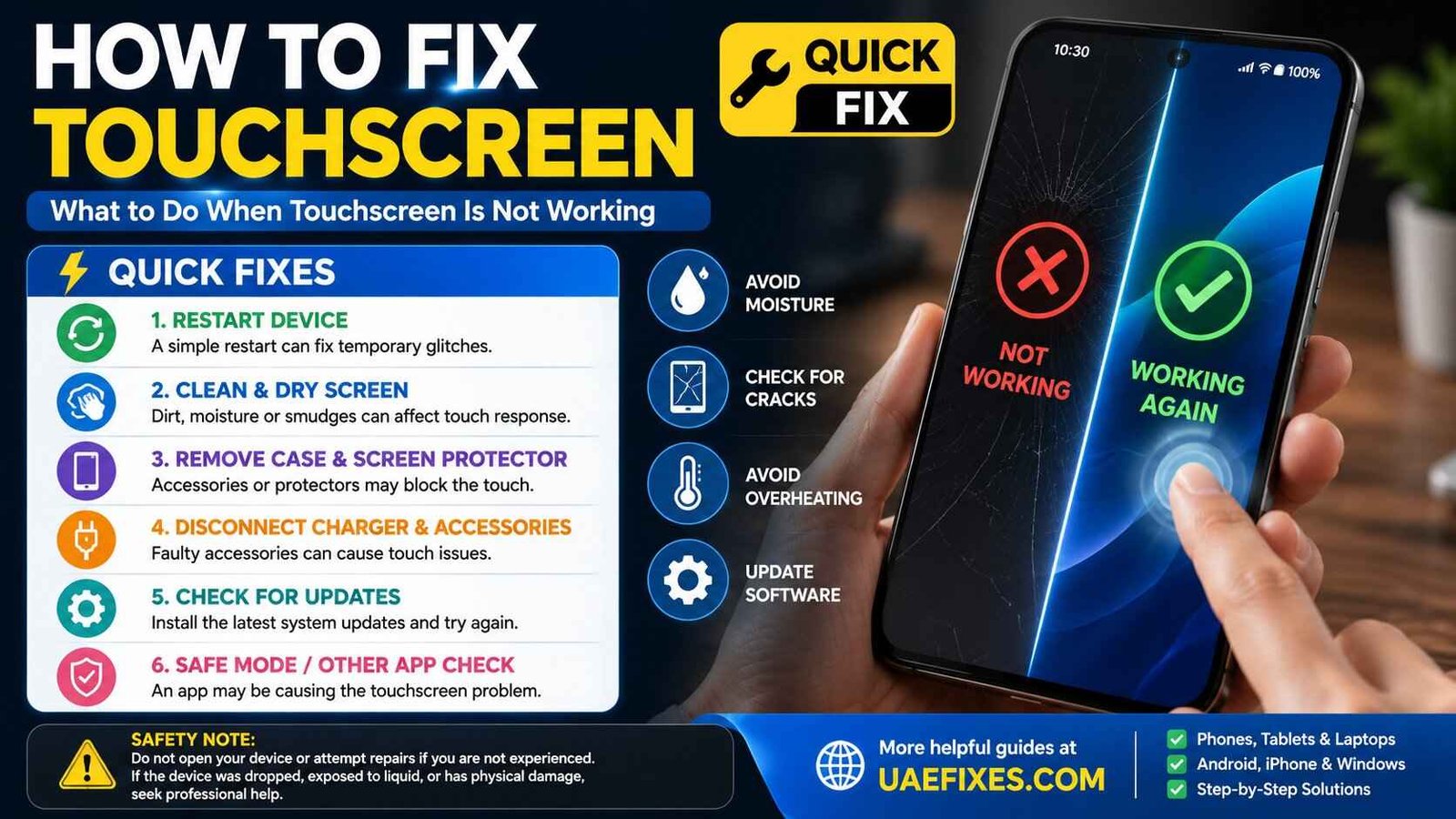
Make sure the screen is clean and completely dry. Even a small amount of moisture, dirt, or debris can interfere with touch response.
If you are using a phone or tablet, temporarily remove the case and screen protector and test the display again.
Google’s Android guidance specifically recommends checking for screen damage, removing cases or screen protectors, removing gloves or stickers, and cleaning the screen when touch is not responding correctly.
Don’t press harder on the screen to make it respond. A touchscreen should respond to normal touch.
Restart the Device
A restart is one of the first things worth trying because a temporary software problem can make touch appear completely broken.
Restart the phone, tablet, or computer normally if you can.
If the touchscreen is completely unresponsive and you cannot use the normal on-screen controls, use the device manufacturer’s recommended button combination for a forced restart.
After the device starts again, test several areas of the screen rather than checking only one location.
If the touchscreen works normally after restarting but stops responding again later, the underlying problem may involve an application, software update, driver, temperature, or hardware.
Check Whether Only Part of the Screen Is Not Working
This is an important diagnostic clue.
Try touching different areas of the screen.
If the entire screen is unresponsive, the cause could be software, the touchscreen driver, a connection problem, or hardware failure.
If only one strip, corner, or section does not respond, physical damage to the touch layer becomes more suspicious.
For Android devices, Google recommends testing the affected area by slowly dragging across the screen. If touch repeatedly stops at the same physical location, that can indicate a problem with that part of the display.
A consistent dead area is very different from occasional missed touches.
Remove the Screen Protector
A screen protector is useful for protecting a display, but a damaged, poorly fitted, thick, or incorrectly installed protector can sometimes affect touch response.
If the touchscreen became unreliable after installing a new protector, remove it temporarily and test the device.
Don’t immediately throw away a perfectly good protector, though. First establish whether it is actually responsible.
If touch works normally without it, you have found a useful clue.
Check for Water or Moisture
Touchscreens and moisture do not mix well.
If the phone has recently been exposed to rain, a spill, humidity, or another source of moisture, don’t continue tapping the screen repeatedly to see whether it starts working.
Dry the exterior carefully and follow the manufacturer’s guidance for liquid exposure.
Do not use excessive heat to dry the device.
If the touchscreen remains unresponsive after liquid exposure, professional inspection may be necessary because moisture can affect internal components even when the outside of the phone looks normal.
Disconnect the Charger and Accessories
If the touchscreen behaves strangely only while the device is charging, disconnect the charger and test it again.
A faulty cable, charger, outlet, or accessory can sometimes coincide with touch-response problems.
Apple specifically recommends disconnecting Lightning or USB-C accessories when troubleshooting iPhone and iPad screen-response issues. If the problem disappears after disconnecting an accessory, Apple recommends trying a different outlet, cable, or charger.
This is a particularly useful test because it costs nothing and can quickly identify whether charging is involved.
Check Whether One App Is Causing the Problem
If the touchscreen works everywhere except inside one application, the display itself may not be the problem.
Open another app and test scrolling, tapping, typing, and other touch actions.
If only one app causes problems, update the app first.
If the issue started after installing a new application, temporarily removing that app can help determine whether it is responsible.
On Android, Google recommends using Safe Mode to determine whether an installed application is causing the touchscreen problem. If touch works normally in Safe Mode, a recently installed app is a likely suspect.
Update Your Phone or Tablet
Software updates can fix bugs that affect device functionality, including touch response.
Check for available system updates and install official updates appropriate for your device.
Don’t download unofficial firmware simply because a website claims it will repair the touchscreen.
If the touchscreen stopped working immediately after an update, note that timing. The update may have introduced a software issue, and the manufacturer’s support documentation may provide a specific solution.
How to Fix Touchscreen Not Working on Android
If you have an Android phone or tablet, start with the basic checks: clean and dry the screen, remove the case or screen protector, restart the device, and test whether the problem affects the entire display or only one area.
If the issue happens only in one app, investigate that app.
If the problem continues, Safe Mode can help determine whether a downloaded application is involved.
Google also recommends testing the affected portion of the screen and contacting the device manufacturer if the problem persists.
Avoid performing a factory reset as your first solution.
A factory reset removes personal data and applications, so it should be considered only after less destructive troubleshooting has failed and your important data has been backed up.
How to Fix Touchscreen Not Working on iPhone
For an iPhone or iPad, begin with a restart and make sure the screen is clean and free from water.
Remove the case and screen protector temporarily.
Also disconnect charging and USB accessories and test the screen again.
Apple recommends these steps for screens that are too sensitive or respond intermittently. If the screen still does not work properly, Apple says the device may need service.
If your iPhone has suffered a significant drop or liquid exposure and the touch problem appeared afterward, software troubleshooting is less likely to solve the underlying problem.
How to Fix Touchscreen Not Working on Windows 11
Windows touchscreen laptops have an additional layer to troubleshoot because Windows uses touchscreen drivers and other hardware components to communicate with the display.
Start by restarting the computer.
If the touchscreen remains unresponsive, check Windows Update.
Microsoft recommends installing available Windows updates and optional updates when troubleshooting a touchscreen that is not responding in Windows.
You can also check Device Manager → Human Interface Devices to see whether the touchscreen hardware or driver is listed.
If the touchscreen driver is missing, disabled, or showing an error, the problem may be related to the driver or device configuration.
Do not download a random touchscreen driver from an unknown website. Use Windows Update or the official support page for your laptop manufacturer.
What If the Touchscreen Works but Is Inaccurate?
A touchscreen does not have to be completely dead to have a problem.
You may notice that taps register in the wrong location, scrolling becomes difficult, or the screen responds only after several attempts.
Start by cleaning the screen and removing the protector.
Then restart the device and check whether the problem occurs everywhere or only in one application.
If the touch location is consistently inaccurate across the entire screen, software, calibration, driver, or hardware issues may be involved.
If only one part of the screen behaves incorrectly, physical damage becomes more likely.
What If the Touchscreen Is Slow to Respond?
Slow touch response can be caused by temporary system load, an application problem, software issues, heat, or hardware.
Check whether the device is unusually hot or whether several demanding applications are running.
Close unnecessary applications and restart the device.
If the problem happens only in one application, investigate that application first.
If the entire touchscreen remains slow even after restarting, check for system updates and manufacturer support information.
What If Touchscreen Stopped Working After a Drop?
A touchscreen that stops responding after a drop should be treated differently from one that stopped after a software update.
The impact may have damaged the display, touch digitizer, internal connection, or another component.
Look for cracks, black areas, lines, unusual colours, or sections of the screen that no longer respond.
Even if the glass looks intact, internal damage can still affect touch.
In this situation, repeated resets are unlikely to repair physical damage.
What If Touchscreen Stopped Working After Getting Wet?
If the touchscreen stopped responding after liquid exposure, don’t assume that drying the outside means the inside is safe.
Liquid can reach internal components and cause problems that appear immediately or later.
Avoid charging a wet device unless the manufacturer specifically says it is safe to do so.
If the device continues to behave abnormally after liquid exposure, professional inspection is the safer option.
How to Tell If the Touchscreen Hardware Has Failed
The strongest hardware clues are usually physical and repeatable.
A specific section of the screen may never respond.
Touch may fail after a drop or impact.
The display may show cracks, lines, black areas, or other abnormalities.
A Windows touchscreen may remain unresponsive even after software and driver troubleshooting.
On compatible Microsoft Surface devices, Microsoft provides a useful distinction: if touch works in the device’s UEFI environment, the issue may be related to Windows or the touch driver; if touch does not work there either, hardware failure becomes more likely.
For other devices, the exact diagnostic procedure varies by manufacturer.
Don’t Factory Reset Too Quickly
A factory reset is sometimes recommended online as a universal solution for touchscreen problems.
It shouldn’t be.
A factory reset can erase applications, settings, and personal data. Before considering one, back up important information and make sure simpler causes have been investigated.
If a phone has a physically damaged touchscreen, resetting the operating system will not repair the damaged touch layer.
The same principle applies to laptops.
A reset is a software troubleshooting step, not a hardware repair.
When Should You Get the Touchscreen Repaired?
If the screen remains unresponsive after basic software troubleshooting, the next step depends on the symptoms.
A touchscreen that stopped working after a drop should be inspected for physical damage.
A phone that stopped responding after liquid exposure may need internal inspection.
A Windows touchscreen that is not detected correctly may require driver or hardware diagnosis.
If only one section of the screen consistently fails, repair is more likely than a simple settings change.
At that point, continuing to experiment with random fixes can waste time and potentially make the situation worse.
How to Prevent Touchscreen Problems
Keeping the screen clean and dry is simple but useful.
Use a suitable screen protector rather than one that is badly fitted or damaged.
Avoid exposing devices to excessive heat or moisture.
Keep operating-system and manufacturer updates current.
Handle laptops carefully around the screen hinges, and avoid putting pressure on phone or tablet displays.
Most importantly, pay attention to when the problem starts.
A touchscreen problem that appears after an app installation needs a different approach from one that appears after a drop.
Frequently Asked Questions
How do I fix a touchscreen that is not working?
Start by cleaning and drying the screen, removing the case or screen protector, restarting the device, and checking whether the problem affects the entire screen or only one area. Then check for software, app, driver, or hardware problems.
Why is my touchscreen not responding?
Possible causes include a temporary software problem, dirty or wet screen, screen protector, incompatible app, charging accessory, outdated software or driver, physical damage, or touchscreen hardware failure.
How do I fix touchscreen not working on Android?
Restart the phone, clean the screen, remove the case or screen protector, test different areas of the display, and check whether a particular app causes the problem. Android’s official guidance also recommends Safe Mode for identifying app-related problems.
How do I fix touchscreen not working on an iPhone?
Restart the iPhone, make sure the screen is clean and dry, remove the case or screen protector, and disconnect charging or USB accessories. If the problem remains, Apple recommends getting service.
How do I fix a touchscreen that is not working on Windows 11?
Restart the computer and install available Windows and optional updates. If the problem continues, check the touchscreen device and driver through Windows Device Manager and use the laptop manufacturer’s official support resources.
Why does only part of my touchscreen work?
A consistent unresponsive area can indicate damage to part of the touchscreen or its touch layer. Test the same area several times and check whether the problem always occurs in the same location.
Can a screen protector stop touch from working?
Yes, a poorly fitted, damaged, or unsuitable screen protector can sometimes interfere with touch response. Remove it temporarily to see whether the touchscreen works normally.
Can water make a touchscreen stop working?
Yes. Moisture can interfere with touch response and may also damage internal components. If the problem began after liquid exposure, avoid charging or repeatedly using the device and consider professional inspection.
Should I factory reset my phone if the touchscreen is not working?
Not as a first step. A factory reset can erase data and will not repair physical screen damage. Back up your important information and try simpler troubleshooting first.
How can I tell if my touchscreen needs replacement?
If a specific area consistently fails, the screen was damaged by a drop or liquid, or touch remains completely unresponsive after software troubleshooting, hardware repair may be necessary.
Final Fix
When a touchscreen stops working, the most useful question is not simply “How do I make touch work again?”
It is “What changed before the touchscreen stopped working?”
If the problem appeared after installing an app, investigate software. If it started after an update, check the operating system and drivers. If removing the screen protector fixes it, the display itself may have been fine all along.
But if touch stopped after a drop, liquid exposure, or physical damage, don’t waste hours changing settings that cannot repair damaged hardware.
Start with the simple checks, identify the pattern, and only move toward more advanced troubleshooting when the evidence points there.
For another display-related problem, see our How to Fix Screen Flickering guide on UAEFIXES.COM.