How to Fix Screen Flickering in Windows 11
Screen flickering in Windows 11 can be surprisingly difficult to diagnose. One minute everything looks normal, and the next the display starts flashing, blinking, going black for a moment, or constantly refreshing.
The good news is that a flickering screen does not automatically mean your monitor or laptop display is failing. Windows 11 display drivers, incompatible applications, refresh-rate settings, recent updates, cables, and hardware can all play a role.
Before buying a new monitor or taking apart a laptop, start by identifying when the flickering happens and whether Windows itself is responsible.
⚠️ Safety Note: Do not open a monitor, laptop, or other electronic device while it is connected to power. If you notice burning smells, sparks, liquid damage, unusual heat, or physical damage, stop troubleshooting and seek professional help. For Windows 11 display problems, see Microsoft’s official screen-flickering troubleshooting guide.
Why Is My Windows 11 Screen Flickering?
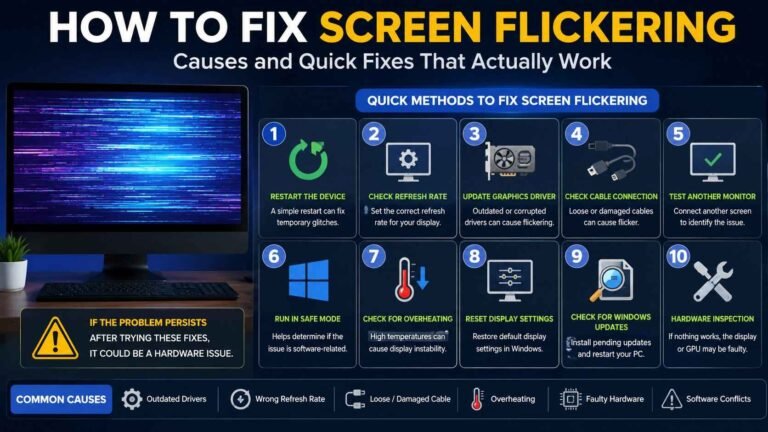
The most common causes are usually related to the display driver or an application that is not working correctly with Windows 11.
A wrong or unstable refresh rate can also create display problems, while a damaged HDMI or DisplayPort cable can cause flickering on an external monitor.
If the problem started immediately after a Windows or driver update, that timing is another useful clue. Microsoft specifically recommends checking whether Task Manager flickers because this can help determine whether the display driver or an incompatible app is responsible.
First, Reset the Windows 11 Graphics Driver
Before changing complicated settings, try resetting the graphics driver.
Press:
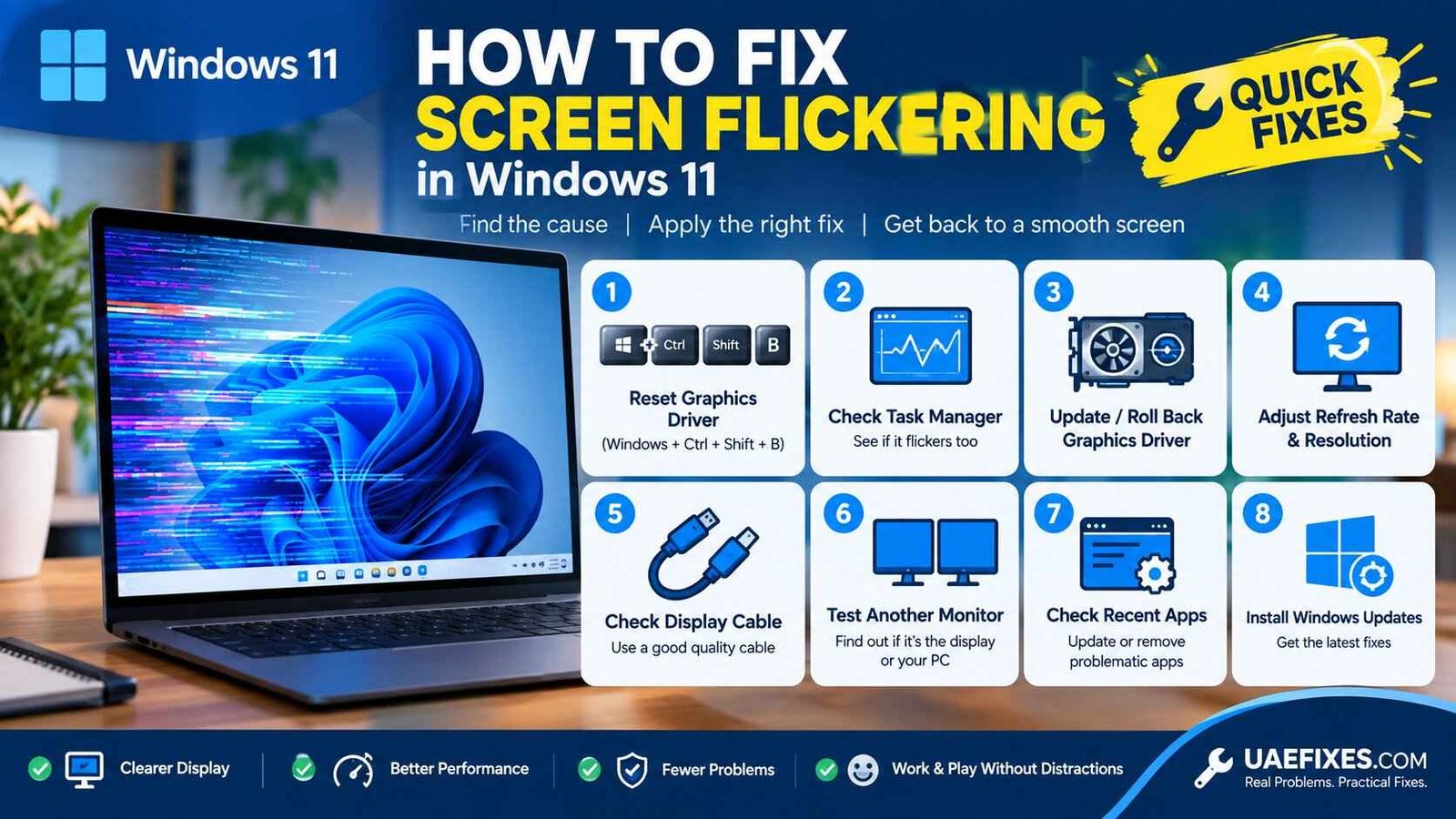
Windows + Ctrl + Shift + B
Your screen may briefly go black or flicker, and you may hear a short sound. Windows is essentially restarting the graphics driver without restarting the entire computer.
If the screen becomes stable afterward, the issue may have been a temporary graphics-driver problem.
If the flickering returns, continue with the checks below rather than repeatedly using the shortcut.
Check Whether Task Manager Flickers
This is one of the most useful Windows 11 tests because it can help separate a driver problem from an application problem.
Press Ctrl + Shift + Esc to open Task Manager.
Now watch both Task Manager and the rest of the screen.
If Task Manager flickers at the same time as the rest of the display, a display-driver problem is more likely.
If Task Manager stays stable while everything behind it flickers, an incompatible application is more likely to be responsible. Microsoft recommends this test as an early diagnostic step for Windows screen-flickering problems.
This small test can save you from changing several settings that have nothing to do with the actual problem.
Update the Display Driver
If Task Manager flickers too, check the graphics driver.
Right-click the Start button and open Device Manager.
Expand Display adapters and locate your graphics adapter.
Right-click it and select Update driver.
You can also check Windows Update and your computer manufacturer’s official support page for a compatible graphics driver.
If you have a laptop, it is often better to check the laptop manufacturer’s support page as well because the manufacturer may provide a driver specifically tested for that model.
What If Flickering Started After a Driver Update?
Sometimes an update causes the problem rather than fixing it.
If your Windows 11 screen was stable before a recent graphics-driver update and began flickering afterward, rolling the driver back may be more appropriate than installing another random driver.
Open Device Manager → Display adapters → your graphics adapter → Properties → Driver.
If Roll Back Driver is available, Windows can return to the previous driver.
Microsoft specifically recommends considering a driver rollback when the flickering began after a recent Windows update.
If the rollback option is unavailable, Windows may not have a previous driver stored.
Check the Refresh Rate in Windows 11
Your display’s refresh rate determines how frequently the image is refreshed.
An incompatible or poorly matched setting can contribute to display problems, particularly after changing monitors, resolutions, graphics settings, or other display hardware.
Open:
Settings → System → Display → Advanced display
Under Choose a refresh rate, select a refresh rate supported by your display.
If you recently changed this setting and the flickering started afterward, return to the previous supported setting.
Windows 11 also supports Dynamic Refresh Rate on compatible hardware, which automatically adjusts the refresh rate based on what you are doing. If flickering appears after enabling a variable or dynamic refresh feature, temporarily disabling it can help determine whether it is involved.
Check Your Display Resolution
A refresh rate problem is not always the real cause.
The resolution and refresh rate need to work together with what your monitor and graphics hardware support.
Go to:
Settings → System → Display
Check the selected display resolution and use the recommended setting where appropriate.
Microsoft recommends using the display settings available for the particular monitor rather than forcing unsupported combinations.
If you are using multiple monitors, make sure you are changing the settings for the correct display.
Check the HDMI or DisplayPort Cable
If you are using a desktop monitor or external display, inspect the cable before blaming Windows 11.
A loose, damaged, or unreliable cable can cause flickering, brief black screens, signal drops, or intermittent display problems.
Disconnect and reconnect the cable securely.
If possible, test another compatible cable.
Also try another display input if your monitor provides one.
If the flickering disappears after replacing the cable, the Windows settings were probably not the real problem.
Disconnect the Second Monitor
Multiple-monitor setups introduce another possible source of confusion.
Disconnect external monitors and other display devices temporarily and use only the main screen.
If the flickering stops, reconnect the displays one at a time.
This can help identify whether the issue is related to one monitor, cable, port, refresh rate, resolution, or display configuration.
Windows 11 provides separate display controls for multiple monitors, so make sure the correct screen is selected when changing display settings.
Check Recently Installed Apps
If Task Manager does not flicker while the rest of the screen does, look at recently installed or updated applications.
Some programs interact heavily with graphics acceleration and can create display problems when they are incompatible with a particular Windows or graphics-driver configuration.
Think about what changed shortly before the flickering started.
Was a browser updated?
Did you install a screen recorder?
Did you install a new graphics or gaming application?
Did a video-editing or remote-access program appear recently?
Update the suspected application first.
If the problem continues, temporarily uninstalling the suspected application can help confirm whether it is responsible. Microsoft also recommends updating or uninstalling an incompatible application when Task Manager remains stable while the rest of the screen flickers.
Try Windows Safe Mode
Safe Mode starts Windows with a limited set of drivers and services.
If the screen is stable in Safe Mode but flickers during normal Windows 11 operation, that provides useful evidence that software, drivers, or startup applications may be involved.
Safe Mode should not be treated as a permanent solution. Its value is mainly diagnostic: it helps narrow down whether the problem is happening because of something Windows loads during a normal startup.
Check Windows Updates
If the problem appeared after a Windows update, check whether another update is available.
Go to:
Settings → Windows Update
Install available updates from Microsoft and restart the computer.
However, don’t assume that every flickering problem can be solved by installing more updates. If the issue began immediately after a particular update or driver change, the rollback route may be more useful.
For Windows 11 troubleshooting, it is also safer to obtain drivers and updates from Windows Update or the official manufacturer rather than downloading unknown driver packages from third-party websites.
Is Your Windows 11 Laptop Overheating?
Heat can expose problems that do not appear during light use.
If the screen flickers mainly while gaming, editing video, running demanding applications, or using the laptop for long periods, pay attention to temperature and cooling.
Make sure the vents are not blocked and that the laptop has adequate airflow.
In a hot environment such as the UAE, keeping a laptop’s cooling path clear is particularly important.
Do not place a laptop on a bed, thick blanket, or other soft surface when it is under heavy load.
What If the Screen Flickers Only in One App?
If Windows 11 itself appears stable but one application flickers, don’t immediately change your entire display configuration.
First update the application.
Then check whether the application has graphics or hardware-acceleration settings that can be adjusted.
You can also test another application that performs a similar task.
For example, if video playback flickers in one browser but not another, the evidence points more toward the application or its graphics settings than toward a failing monitor.
What If the Screen Flickers When Moving the Laptop Lid?
This is an important clue.
If the screen starts flickering when you open, close, or adjust the laptop lid, the problem may be related to the internal display connection or cable around the hinge.
Software settings are less likely to explain a problem that changes directly with physical movement.
Don’t repeatedly move the lid to reproduce the problem. If the behaviour is consistent, have the laptop inspected by a qualified technician.
How to Tell If the Monitor Is the Problem
The easiest way to separate a Windows 11 problem from a monitor problem is to test the components independently.
Try another compatible monitor with the same computer.
If the second monitor works normally, the original monitor, cable, or input may be responsible.
If both monitors flicker in the same way, the computer, graphics driver, graphics hardware, or Windows configuration becomes more suspicious.
If possible, testing the original monitor with another computer can provide another useful comparison.
The goal is to isolate the faulty part rather than replacing expensive hardware based only on symptoms.
When Screen Flickering May Mean a Hardware Problem
Software troubleshooting is worth trying first, but there is a point where continuing to change Windows settings stops being useful.
Persistent flickering across different applications, cables, monitors, and computers can indicate a hardware issue.
Physical screen damage, liquid exposure, unusual heat, burning smells, sparks, or other electrical symptoms are stronger reasons to stop troubleshooting yourself.
A laptop that flickers specifically when its lid moves may also need hardware inspection.
In these situations, the safest solution is to identify and repair the underlying hardware problem rather than repeatedly forcing Windows to behave normally.
How to Prevent Screen Flickering in Windows 11
There is no single setting that prevents every type of flickering.
Keeping Windows and graphics drivers maintained, using compatible display settings, avoiding damaged cables, keeping cooling vents clear, and paying attention to changes after software updates can reduce the chance of recurring problems.
It is also useful to remember what changed before the problem appeared.
A screen that began flickering immediately after a driver update should be investigated differently from a screen that started flickering after a laptop was dropped.
The timeline is often one of the best troubleshooting clues.
Frequently Asked Questions
Why is my Windows 11 screen flickering?
Common causes include display-driver problems, incompatible applications, refresh-rate settings, cables, display hardware, and recent system changes. Microsoft recommends checking whether Task Manager flickers as an early way to distinguish between a driver and application problem.
How do I stop screen flickering in Windows 11 quickly?
Try Windows + Ctrl + Shift + B to reset the graphics driver. If that does not help, check Task Manager, the graphics driver, refresh rate, display cable, and recently installed applications.
Why does my Windows 11 screen flicker after an update?
A recent Windows or graphics-driver update can sometimes be associated with display problems. If the flickering began immediately after an update, check for newer updates or consider rolling back the display driver if that option is available.
Can a bad HDMI cable cause screen flickering?
Yes. A loose or damaged HDMI cable can cause intermittent flickering or signal loss. Testing a known-good compatible cable is one of the simplest ways to rule this out.
Why does only one application flicker?
If Task Manager remains stable while one application or the rest of the desktop flickers, an incompatible application may be involved. Updating, repairing, or reinstalling the application can help.
Should I change my Windows 11 refresh rate?
Only use a refresh rate supported by your display. You can check available options under Settings → System → Display → Advanced display.
Why does my laptop screen flicker when I move it?
A flicker that changes when the laptop lid moves can indicate an internal display cable or connection problem. This is more suggestive of hardware than a normal Windows display setting.
Final Fix
The fastest way to fix screen flickering in Windows 11 is not to start changing every display setting you can find.
Start with the Task Manager test.
If Task Manager flickers too, investigate the graphics driver. If Task Manager stays stable, investigate applications. From there, check the refresh rate, display cable, Windows updates, external monitors, and finally the hardware itself.
That approach turns a frustrating flashing screen into a much more manageable troubleshooting process.
For another related problem, see our How to Fix Screen Flickering guide on UAEFIXES.COM, which covers broader causes across laptops, monitors, and phones.