How to Fix Screen Flickering: Causes and Practical Solutions
A flickering screen can be anything from a quick annoyance to an early warning that something is wrong with your display, cable, graphics driver, or hardware. The tricky part is that the screen may look fine one moment and start flashing, blinking, or going black the next.
Before replacing the monitor or assuming the laptop screen is damaged, it is worth finding out what is actually causing the flickering. In many cases, the problem can be fixed without replacing the display.
This guide explains the most common causes of screen flickering and shows you what to check first, from simple settings to possible hardware problems.
Safety Note: Before opening a monitor, laptop, phone, or other electronic device, disconnect power and avoid working on internal components unless you know how to do so safely. If you notice burning smells, unusual heat, sparks, liquid damage, or physical damage, stop troubleshooting and seek professional help. For Windows-related display troubleshooting, you can also refer to Microsoft’s official screen-flickering guidance.
What Does Screen Flickering Usually Look Like?
Screen flickering can appear in several ways.
You might see the entire display flashing rapidly, horizontal lines appearing and disappearing, brightness changing by itself, the screen briefly going black, or parts of the image blinking.
It may happen continuously or only when opening certain applications, watching videos, playing games, moving the laptop lid, or connecting an external monitor.
That difference matters because when the flickering happens can provide a clue about the cause.
Why Is My Screen Flickering?
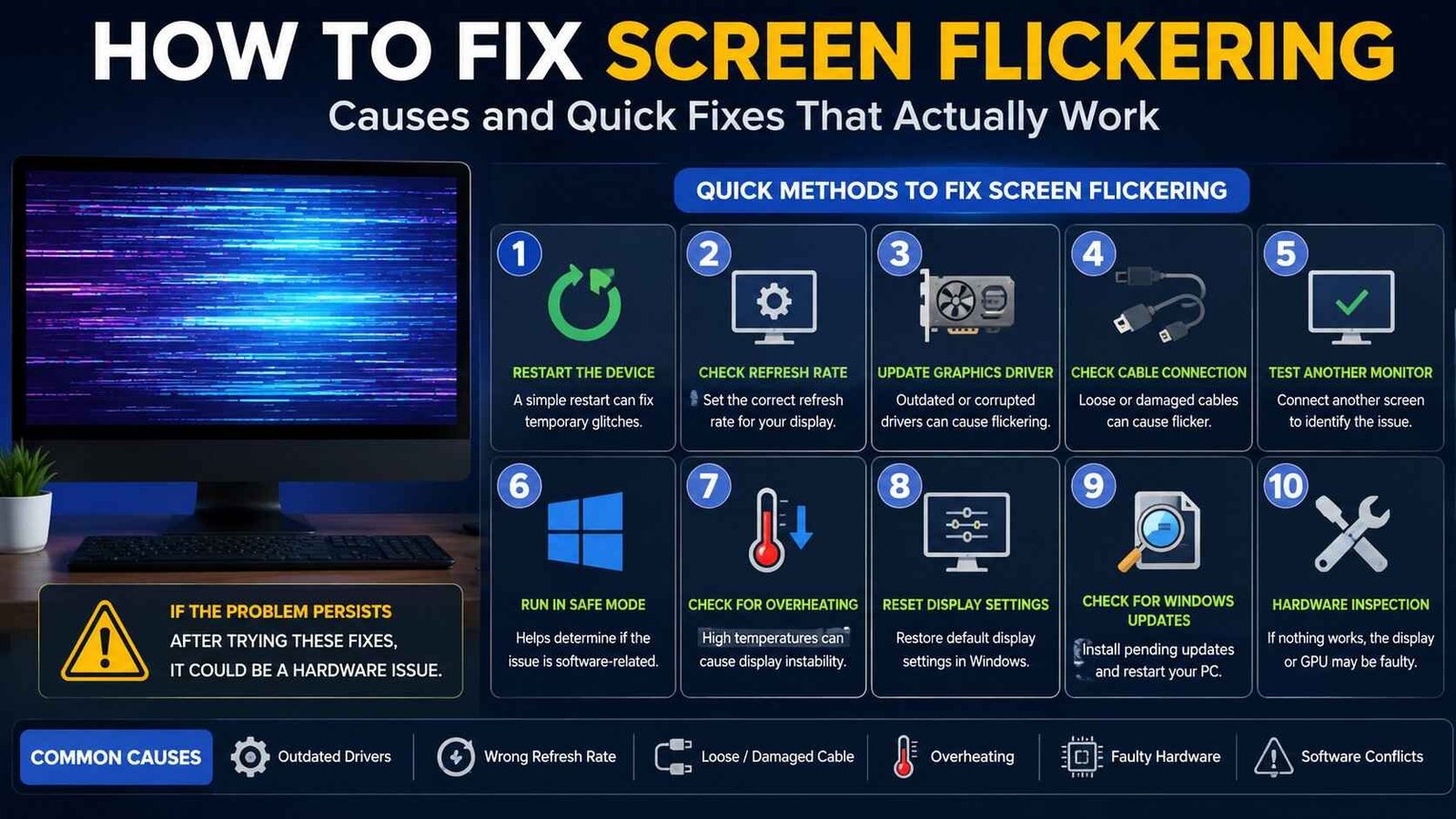
The most common causes include an incorrect refresh rate, outdated or corrupted graphics drivers, incompatible applications, loose display connections, damaged cables, graphics hardware problems, or a failing screen.
On laptops, the problem can sometimes be related to the display cable running through the hinge. If flickering changes when you move the lid, hardware becomes more likely.
On desktop computers, a loose or damaged HDMI, DisplayPort, or other display cable can produce intermittent flickering.
Heat can also play a role. In the UAE, computers and monitors operating in poorly ventilated or unusually hot environments may experience more demanding thermal conditions, particularly when combined with dust buildup.
Start With the Simplest Fix: Restart the Device
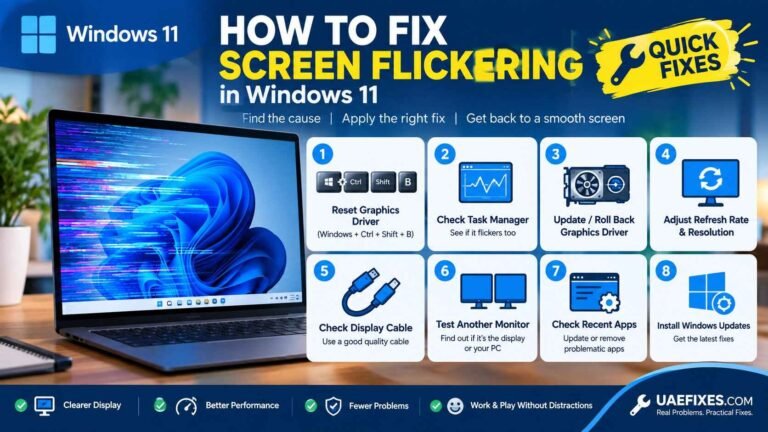
If the flickering appeared suddenly, restart your computer first.
A temporary graphics-system problem can sometimes cause display abnormalities, and restarting gives Windows and the graphics hardware a clean start.
If the flickering disappears after restarting but returns later, don’t treat the restart as a permanent fix. The recurring problem may point to a driver, application, refresh-rate, temperature, or hardware issue.
Check the Screen Refresh Rate
An incorrect refresh rate can cause display instability, particularly when a monitor does not behave properly with the selected setting.
In Windows, open Settings → System → Display → Advanced display and check the available refresh-rate options.
If you recently changed the refresh rate, resolution, monitor, or graphics settings, return to a supported setting and check whether the flickering stops.
For a monitor designed to run at a particular refresh rate, using a compatible setting is generally preferable to forcing a mode that the display or connection cannot reliably handle.
Update or Reinstall the Graphics Driver
The graphics driver controls communication between Windows and the graphics hardware. If the driver is outdated, corrupted, or incompatible with a recent Windows update, display problems can occur.
Check for graphics-driver updates from the appropriate manufacturer or through Windows Update.
If the problem began immediately after a driver update, the newest driver is not necessarily the best answer. In that situation, rolling back to the previous stable driver may be worth considering.
This is especially useful when the screen was working normally before a Windows or graphics-driver update.
Check Whether an App Is Causing the Flicker
Sometimes the display itself is fine and a particular application is causing the problem.
If the flickering happens only when using one program, close that application and see whether the rest of Windows behaves normally.
Web browsers, video applications, games, screen-recording software, and programs that use hardware acceleration can sometimes interact differently with graphics drivers.
If the problem is limited to one application, check that application’s settings and updates before assuming the monitor or laptop screen is defective.
Test the Screen in Safe Mode
Safe Mode can help separate a Windows software problem from a deeper hardware issue.
If the display behaves normally in Safe Mode but starts flickering during a normal Windows session, software, drivers, or startup applications become more likely causes.
If the screen continues flickering even when Windows is not fully loaded, hardware becomes more suspicious.
This is not an absolute test, but it can narrow down where you should investigate next.
Check the HDMI or DisplayPort Cable
For a desktop monitor or external display, don’t overlook the cable.
A damaged, loose, poorly connected, or unsuitable cable can cause intermittent black screens, flashing, lines, or unstable video.
Turn off the relevant equipment if necessary, disconnect the display cable, and reconnect it securely.
If possible, test with another known-good compatible cable. This simple test can save you from replacing a perfectly good monitor.
Also check the ports. Dust, physical damage, or a loose connection can cause problems that look like a failing display.
Try Another Monitor or TV
One of the easiest ways to determine whether the problem is the computer or the display is to test another screen.
Connect the computer to a known-good monitor or compatible TV.
If the second display works normally while the original screen continues to flicker, the original display, its cable, or its connection becomes more likely to be responsible.
If both displays flicker, the computer’s graphics hardware, driver, software, or output settings deserve more attention.
This simple comparison is often more useful than changing multiple settings at random.
If You Have a Laptop, Move the Screen Carefully
Laptop flickering that changes when you open, close, or move the lid deserves special attention.
The display connects to the rest of the laptop through internal hardware, including a display cable that passes through the hinge area. Repeated movement over time can contribute to connection or cable problems.
If the screen flickers when the lid is moved but becomes stable when the laptop stays in one position, don’t keep bending or adjusting the screen to make the flickering stop.
That pattern is a useful indication that the problem may require hardware inspection.
Check for Overheating
A computer that becomes unusually hot can develop instability, particularly when the graphics processor or other components are under heavy load.
Check whether the flickering appears mainly during gaming, video editing, high-resolution video playback, or other demanding workloads.
Make sure the laptop or desktop has adequate airflow and that vents are not blocked.
Dust can restrict airflow. In a hot environment such as the UAE, keeping ventilation clear becomes particularly important.
Avoid placing a laptop on soft surfaces such as beds or thick fabric when it needs to dissipate heat.
What If the Screen Flickers Only During Gaming?
Gaming can expose problems that are not obvious during normal desktop use.
The graphics processor is working harder, the refresh rate may be higher, and features such as variable refresh rate can affect how the display behaves.
If flickering occurs only during games, check the game’s graphics settings and temporarily reduce demanding options.
You can also test a different refresh rate or disable display features such as variable refresh technologies to determine whether they are contributing to the problem.
If the problem appears across several games and becomes worse as the computer heats up, investigate graphics hardware and temperature rather than assuming the game itself is responsible.
What If the Screen Is Flickering After a Windows Update?
A Windows update can occasionally change drivers or system components that affect display behaviour.
If the flickering started immediately after an update, check Windows Update for additional updates and review your graphics driver.
If the problem clearly began after a driver or system change, reverting the affected driver or update may help identify the cause.
However, avoid repeatedly installing random drivers from unofficial websites. Use the device or graphics manufacturer’s official support resources whenever possible.
How to Tell Whether the Monitor Is Failing
A monitor becomes more suspicious when the flickering happens independently of the computer.
For example, if the monitor flickers with different computers, different cables, and different input sources, the display itself may be the problem.
Persistent flickering, permanent lines, unusual colour changes, a burning smell, physical damage, or other abnormal behaviour should not be ignored.
If the display has visible physical damage or electrical symptoms, stop using it and have it assessed rather than repeatedly testing it.
How to Fix Screen Flickering on a Phone
If you are dealing with a smartphone rather than a computer, the troubleshooting path is slightly different.
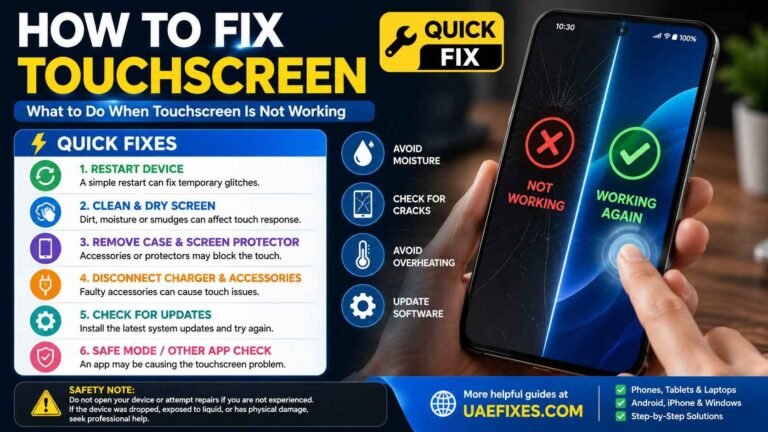
Start by restarting the phone and checking whether the problem occurs across the entire system or only inside one application.
Remove recently installed apps if the flickering began after an installation or update.
Also check display settings such as brightness, refresh rate, adaptive display features, and battery-saving modes where available.
If the screen flickers after the phone has been dropped, exposed to moisture, overheated, or physically damaged, software troubleshooting may not solve the underlying problem.
In that situation, professional inspection is more appropriate.
Is Screen Flickering Dangerous?
Screen flickering itself is not necessarily a sign of immediate danger, but the cause matters.
A simple software or refresh-rate problem may require nothing more than a settings change.
A damaged cable or failing display may gradually become worse.
Electrical damage, overheating, battery problems, liquid exposure, or burning smells are different situations. Do not continue using a device that shows signs of electrical damage simply because the screen still works.
When safety is involved, fixing the underlying problem is more important than getting the display working temporarily.
When Should You Stop Troubleshooting?
If you have checked the basic display settings, restarted the device, tested another cable or display where appropriate, and the flickering continues, it may be time to investigate the hardware.
For a laptop, screen movement that triggers flickering is a strong reason to have the display connection inspected.
For a desktop, persistent flickering across different cables and computers can point toward the monitor.
For a phone, flickering after physical or liquid damage may require professional repair.
The important point is not to keep changing settings indefinitely when the evidence is pointing toward a hardware fault.
Can Screen Flickering Be Prevented?
Some causes can be reduced through basic maintenance.
Keep vents and cooling areas clear, avoid excessive heat, use appropriate display cables, keep operating-system and graphics software maintained, and avoid forcing unsupported display settings.
If you use a laptop heavily, pay attention to changes in temperature, fan behaviour, battery condition, and screen behaviour.
A small change that appears occasionally can be easier and cheaper to investigate than a display that eventually stops working altogether.
Frequently Asked Questions
Why is my screen flickering on and off?
The cause could be a graphics driver, refresh-rate setting, display cable, application, overheating, or hardware fault. Testing another cable or monitor can help narrow it down.
Can an HDMI cable cause screen flickering?
Yes. A damaged, loose, or unreliable HDMI cable can cause intermittent flickering, black screens, or unstable video. Testing a known-good compatible cable is a simple way to check.
Why does my laptop screen flicker when I move it?
If moving the laptop lid changes the flickering, an internal display connection or cable may be involved. Avoid repeatedly moving the lid to reproduce the problem and consider having the hardware inspected.
Can outdated graphics drivers cause screen flickering?
Yes. Graphics-driver problems can cause display instability. Updating the driver may help, while a recent driver update that triggered the problem may sometimes need to be rolled back.
Why does my screen flicker only when gaming?
Gaming places greater demands on the graphics processor and display. Refresh rate, variable-refresh settings, graphics drivers, temperature, and hardware stability can all contribute.
Should I replace my monitor if it starts flickering?
Not immediately. First test the cable, display settings, computer, and another compatible screen if possible. If the monitor flickers across different devices and connections, replacement or repair becomes more likely.
Why is my phone screen flickering?
A phone screen can flicker because of software problems, display settings, overheating, an application, or physical hardware damage. If it started after a drop or liquid exposure, hardware should be considered.
Final Fix
Screen flickering is one of those problems where replacing the screen too quickly can be an expensive mistake.
Start by identifying when the flickering happens. Check the refresh rate and graphics driver, test the cable and another display when possible, and pay attention to whether the problem changes with temperature, applications, gaming, or laptop movement.
If those checks point toward hardware damage, stop treating the problem as a software setting and get the device properly inspected.
The best fix is not simply making the flickering disappear for a few minutes. It is finding out why the screen is flickering in the first place.
Visit uaefixes.com for more tips and guides like this.